Ever felt lost in the sea of charts and indicators? You’re not alone! TradingView has become the go-to platform for traders worldwide, but mastering it can seem like cracking a secret code. Don’t worry, though – we’ve all been there, staring at screens filled with squiggly lines and wondering what they mean. This article will help you understand the different TradingView plans and how to pick the one that works for you.
Key Takeaways
- TradingView offers a free version with basic charting tools and a limited number of indicators, perfect for beginners or casual traders.
- Paid TradingView plans, like Pro, unlock more chart layouts, advanced indicators, and priority support, catering to more serious traders.
- Understanding the differences between TradingView plans helps you choose the subscription that best fits your trading style and budget.
- Key features across all plans include interactive charts, technical indicators, and multi-asset coverage, with paid versions offering more of each.
- Optimizing your TradingView experience involves customizing layouts, using watchlists, and leveraging keyboard shortcuts, regardless of your plan.
Understanding TradingView Plans
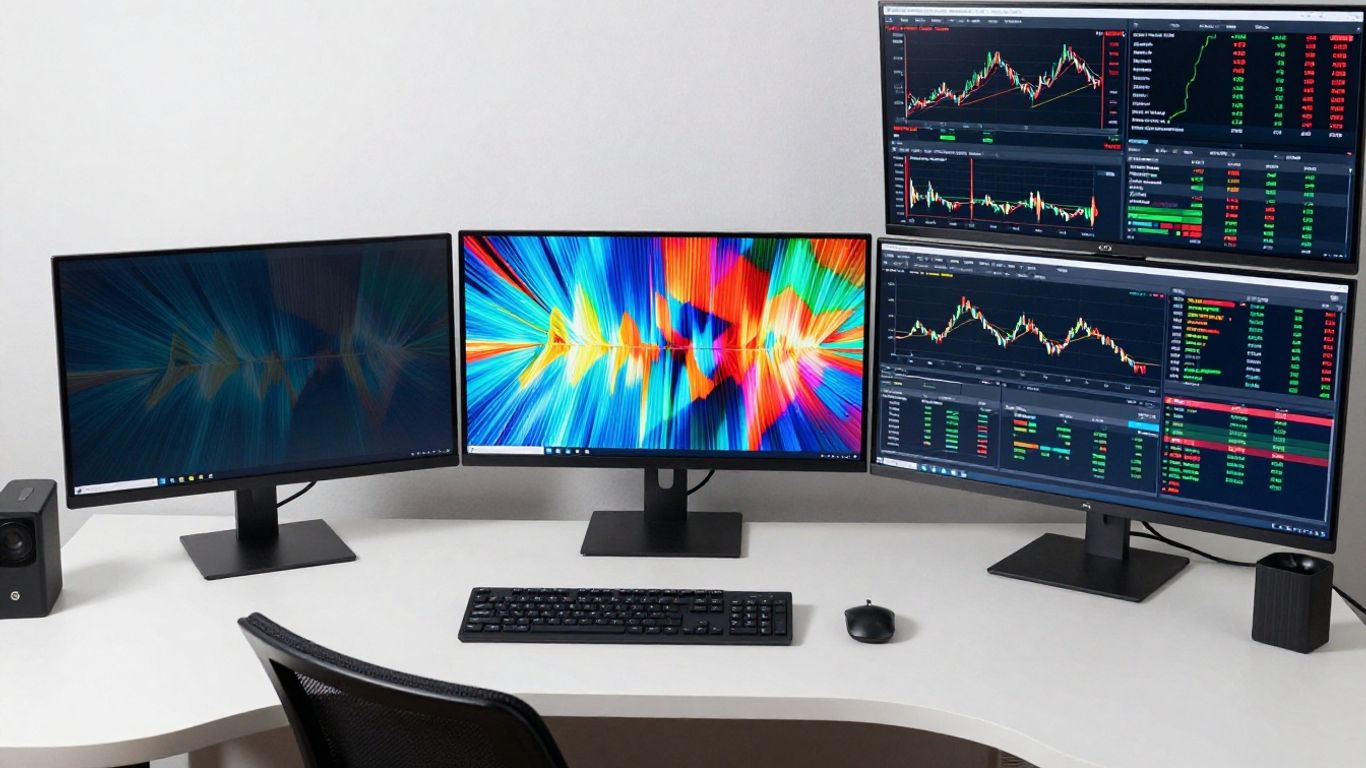
TradingView has become a go-to spot for traders, but figuring out which plan is right for you can feel a bit like trying to read a complex chart without a legend. It’s a powerful platform, no doubt, but it offers different levels of access, and knowing what you get with each is key to not feeling overwhelmed or paying for stuff you don’t need. Let’s break down what’s on offer.
The Free Version: A Starting Point
Think of the free TradingView plan as your entry ticket. It’s a solid place to start, especially if you’re new to trading or just want to check out the platform without any financial commitment. You get access to their core charting tools, which are pretty good, and a decent selection of technical indicators. You can also play around with some drawing tools to mark up charts and get a feel for how they work. It’s enough to get your feet wet and see if charting is your thing. You can also connect with other traders and see what they’re sharing, which is a nice bonus.
- Basic charting capabilities
- A limited number of indicators and drawing tools
- Access to the social trading network
- One chart per tab
The free version is great for learning the ropes and getting comfortable with market analysis. Don’t underestimate what you can do with the basics; sometimes, simplicity is best when you’re just starting out.
Exploring the Benefits of Paid TradingView Plans
When you decide you need more power, the paid plans come into play. These aren’t just minor upgrades; they unlock a whole new level of functionality that can really speed up your analysis and trading. The main differences usually come down to how many charts you can have open at once, how many indicators you can load, and how quickly you can get help if you run into trouble. For active traders, these features can make a big difference in efficiency.
| Feature | Free | Paid Plans (e.g., Pro, Plus, Premium) |
|---|---|---|
| Charts per tab | 1 | 2-8+ |
| Indicators per chart | 3 | 5-25+ |
| Alerts | Limited | More |
| Ad-free experience | No | Yes |
Choosing the Right TradingView Plan for You
So, how do you pick? It really boils down to your trading habits. If you’re just dabbling, the free version might be all you need. But if you’re serious about trading, find yourself hitting limits on the free plan, or want a smoother, faster experience, then looking at the paid options makes sense. Consider how many different markets you track, how complex your analyses are, and how much time you spend on the platform. The best plan is the one that supports your trading style without costing you more than you’re comfortable with. Think about it like this: are you a casual walker, or are you training for a marathon? Your gear needs to match your goals.
Key Features Across TradingView Plans
TradingView packs a lot of useful stuff into its platform, no matter which plan you’re on. It’s designed to give you a clear picture of what the markets are doing. Let’s break down some of the main tools you’ll find.
Interactive Charts and Drawing Tools
At its heart, TradingView is all about charts. You get interactive charts that let you zoom in, out, and scroll through time like it’s nothing. You can pick from different chart types – think candlesticks, bars, or simple lines – whatever makes sense for how you see the market. Then there are the drawing tools. These are like your digital crayons for marking up charts. You can draw trendlines, Fibonacci retracements, or even just scribble notes to yourself. These tools help you visualize potential patterns and price levels. It’s like having a whiteboard for your trading ideas.
Access to Technical Indicators
Indicators are basically mathematical calculations based on price and volume that can give you clues about future price movements. TradingView comes with a bunch of them built-in, over 100 in fact. You’ll find popular ones like Moving Averages, RSI, MACD, and Bollinger Bands. Each indicator can help you look at the market from a different angle. Some might help you spot trends, others might signal when a price could reverse, and some can show you if an asset is overbought or oversold.
| Indicator Type | Common Examples | Purpose |
|---|---|---|
| Trend Following | Moving Averages, MACD | Identify the direction of price movement |
| Momentum | RSI, Stochastic Oscillator | Measure the speed and change of price movements |
| Volatility | Bollinger Bands, ATR | Gauge the degree of price fluctuation |
Multi-Asset Coverage and Screeners
TradingView isn’t just for stocks. You can look at forex, cryptocurrencies, futures, and more, all in one spot. This is super handy if you trade across different markets. To help you find opportunities, there are screeners. A screener is like a search engine for financial assets. You can set specific criteria – like a stock’s market cap, its trading volume, or how much its price has moved recently – and the screener will show you which assets fit your search. It saves you a ton of time sifting through thousands of options manually.
The screener is a powerful tool for identifying potential trades that meet your specific requirements. Instead of manually checking each asset, you can let the screener do the heavy lifting, presenting you with a curated list of opportunities to investigate further. This efficiency is key for active traders who need to spot setups quickly.
- Stocks: Filter by industry, market cap, dividend yield, and more.
- Forex: Screen currency pairs based on volatility or specific price action.
- Cryptocurrencies: Find coins based on market cap, trading volume, or price change percentage.
Optimizing Your TradingView Experience

So, you’ve got TradingView open, charts are loaded, and maybe you’re feeling a little overwhelmed. That’s totally normal! The real magic happens when you start tweaking things to fit how you actually trade. It’s not just about looking at the charts; it’s about making them work for you, fast.
Customizing Chart Layouts and Workflows
Think of your TradingView setup like your personal trading desk. You wouldn’t want a messy desk, right? Setting up custom chart layouts is key. You can create different layouts for different things – maybe one for your daily stock watch, another for forex pairs, or even a separate one for crypto. This way, you’re not constantly rearranging things. You can also save specific indicator combinations and drawing tool setups as templates. So, if you always use the same three indicators on a 15-minute chart, just save it as a template. Click, click, and boom – it’s there. It saves a ton of time.
Leveraging Watchlists and Symbol Search
Your watchlist is basically your curated list of financial instruments you care about. Don’t just dump everything in there. Organize it! Create different lists, like “Tech Stocks,” “Energy Futures,” or “Crypto Movers.” This makes it super easy to jump between different markets or sectors. The symbol search is also your friend. Instead of typing out the full ticker every time, you can usually just type a few letters and TradingView will suggest what you’re looking for. It’s like having a shortcut for all your favorite financial toys.
Utilizing Keyboard Shortcuts and Templates
This is where you can really speed things up. TradingView has a bunch of keyboard shortcuts that let you switch between timeframes, add indicators, or draw lines without touching your mouse. It feels a bit like learning a new language at first, but once you get the hang of it, your trading speed can seriously pick up. Seriously, look up the list of shortcuts – some of them are game-changers. And remember those templates we talked about? Using them with shortcuts makes applying your preferred setups incredibly quick. It’s all about reducing friction so you can focus on the actual trading decisions.
Making your TradingView setup efficient is like tuning up a race car. You want everything to be responsive and exactly where you need it. Small tweaks can lead to big improvements in how quickly and effectively you can analyze the markets and react to price movements. Don’t underestimate the power of a well-organized and personalized trading environment.
Here’s a quick look at how you might organize your watchlists:
| Watchlist Name | Asset Type |
|---|---|
| US Stocks | Equities |
| Major Forex Pairs | Currency |
| Top Cryptos | Digital Assets |
| Commodities | Futures/CFDs |
Harnessing TradingView’s Social Ecosystem
TradingView isn’t just about charts and indicators; it’s also a pretty active place where traders hang out and share what they’re seeing in the markets. Think of it like a big online coffee shop for people who like watching stock prices go up and down. You can actually learn a lot by just seeing what other people are posting.
Following and Learning from Other Traders
This is where the real magic can happen. You can find traders who seem to know what they’re doing and follow their ideas. It’s like having a bunch of extra eyes on the market, each looking for different things. You might see someone post a chart with a setup you hadn’t considered, and bam! It gives you a new way to look at a trade. It’s a good way to get different perspectives without having to do all the heavy lifting yourself. You can even check out FX Junction to see how other platforms are building communities around trading.
Here’s a quick rundown on how to get started with following:
- Browse through trader profiles. Look at their past ideas and see if their style clicks with you.
- Hit that “Follow” button on profiles that catch your eye. This adds them to your feed.
- Customize your feed so you see updates from the traders you’re most interested in.
Don’t just blindly follow what everyone else is doing. Use the ideas you see as a starting point for your own research. The goal is to learn, not to copy.
Sharing Your Own Trading Ideas
Once you start making your own observations, don’t be shy about sharing them. Posting your charts and thoughts can be a great way to solidify your own thinking. Plus, other traders might offer feedback or point out something you missed. It’s a two-way street, and contributing to the conversation can be really rewarding.
To share an idea:
- Open a chart and click the “Publish Idea” button.
- Write a clear title and a description of your trade setup or analysis.
- Add relevant tags so others can find your idea easily.
- Hit publish and see what kind of responses you get.
Engaging with the Trading Community
It’s not just about posting and following; it’s about interacting. When someone shares an idea, leave a comment. Ask questions. Offer your own take if you see something different. This back-and-forth is how you really start to connect with other traders and build your knowledge base. The more you put into the community, the more you’ll likely get out of it. It’s like any social group – participation is key.
Advanced Features and Customization
TradingView isn’t just about looking at charts; it’s about making them work for you. Once you’ve got the basics down, you might want to explore some of the more powerful tools available. This is where things get really interesting, especially if you’re looking to fine-tune your analysis or even build your own trading tools.
Understanding Pine Script for Custom Indicators
Ever wished an indicator did something just a little bit differently? That’s where Pine Script comes in. It’s TradingView’s own programming language, and it’s designed to be pretty accessible, even if you’ve never coded before. You can use it to create your own indicators from scratch or modify existing ones. Think about it: you could build a custom alert that fires only when a specific set of conditions you define are met. It takes a bit of practice, sure, but the payoff can be huge for developing a unique edge. You can find a lot of community-created scripts to learn from, too.
Exploring Strategy Backtesting Capabilities
Before you risk real money on a new trading idea, you’ll want to know if it actually works. TradingView’s strategy backtesting lets you do just that. You can apply a strategy you’ve developed (either manually or using Pine Script) to historical data and see how it would have performed. This is super important for understanding potential profitability and, just as importantly, potential drawdowns. It helps you weed out strategies that look good on paper but fall apart when tested against the market’s past behavior. You can tweak parameters and see how performance changes, which is a big help.
Paper Trading for Risk-Free Practice
Okay, so you’ve built a custom indicator, you’ve backtested a strategy, and you’re feeling good. Now what? Before jumping into live trading, there’s paper trading. This is essentially a simulator where you trade with virtual money. It’s a fantastic way to get a feel for executing trades in real-time market conditions without any financial risk. You can test your workflow, practice order entry, and see how your strategies perform live, all while keeping your capital safe. It’s a great way to build confidence and iron out any kinks in your process. Many traders use this feature extensively before committing real funds, and it’s a smart move for anyone serious about trading.
Building custom tools and testing them thoroughly before deploying them with real capital is a hallmark of disciplined trading. It separates those who react to the market from those who proactively prepare for it.
Making the Most of Your TradingView Subscription
So you’ve got your TradingView plan sorted, whether it’s the free version or a shiny paid subscription. Now what? It’s time to really dig in and make sure you’re getting everything you can out of it. Think of it like buying a fancy new tool – you wouldn’t just let it sit in the box, right? You want to use it to build something awesome.
Avoiding Common Pitfalls in Chart Analysis
It’s super easy to get lost in all the charts and indicators. One big mistake people make is throwing too many indicators on a single chart. It gets cluttered fast, and honestly, it just makes things confusing. You end up seeing noise instead of signals. Try to stick to just a few indicators that actually work with your trading strategy. Less is often more here.
Another thing is not managing risk properly. TradingView has tools to help with this, like position size calculators. Use them! It’s like having a safety net when you’re walking a tightrope – you hope you don’t need it, but it’s good to know it’s there.
And please, don’t just blindly follow what everyone else is posting on the social side of TradingView. It’s great for ideas, sure, but always do your own homework. Treat those posts like a rumor you need to check out before believing.
Syncing Settings Across Devices
This one’s a lifesaver if you trade on different devices. You set up your charts, your watchlists, your favorite indicators just the way you like them on your desktop. Then, you hop on your tablet or phone, and bam! Everything’s right there, exactly as you left it. It means you can keep your trading flow going no matter where you are.
It’s like having your trading cockpit follow you around. No more re-setting everything up every time you switch screens. Just log in, and you’re good to go.
Continuous Learning and Skill Development
TradingView is a tool, and like any tool, you get better with practice. Don’t just set it and forget it. Keep exploring new features, especially if you have a paid plan. Try out different chart types, experiment with indicators you haven’t used before, and really get to know the platform.
- Backtest your strategies: Use TradingView’s historical data to see how your trading ideas would have performed in the past. It’s like a practice run before you put real money on the line.
- Learn from others: Spend time looking at how experienced traders use the platform. What indicators do they favor? How do they set up their charts?
- Stay updated: TradingView adds new features and improves existing ones. Keep an eye on their announcements so you don’t miss out on anything that could help your trading.
The journey to becoming a better trader is ongoing. TradingView provides the tools, but your commitment to learning and adapting is what truly makes a difference. Don’t be afraid to try new things and see what sticks.
Remember, the goal is to use TradingView to make smarter, more informed trading decisions. It’s not just about having the platform; it’s about how you use it.
Wrapping It Up
So, we’ve looked at what TradingView offers, from the free version to the paid upgrades. It’s clear that the platform has tools for pretty much anyone wanting to watch the markets. Whether you’re just starting out and want to get a feel for things, or you’re a seasoned trader needing more advanced features, there’s likely a plan that fits. Don’t forget to play around with the tools, see what works for your specific way of trading, and remember that practice really does make perfect. Pick the plan that feels right for you and happy charting!
Frequently Asked Questions
What exactly is TradingView?
TradingView is like a super cool online charting tool that helps people look at how prices for things like stocks, crypto, and currency move. It has awesome charts, tons of tools to draw on them, and even lets you connect with other traders to share ideas. It’s a great place to learn about the market and practice your trading skills.
Is TradingView free to use?
Yes, TradingView has a free version that’s like a starter kit. You get basic charts and tools to get you going. But, if you want more advanced features, like more charts at once or extra indicators, they have paid plans that offer more power. Think of it like getting a basic phone versus a fancy smartphone – both work, but one does a lot more!
What’s the difference between the free and paid TradingView plans?
The free plan gives you the basics to start. Paid plans, like Pro or Premium, unlock more charts on your screen at once, more technical indicators to help you spot trends, and faster data. It’s like going from a small notebook to a giant whiteboard with all the best markers!
Can I practice trading on TradingView without losing real money?
Absolutely! TradingView has a ‘Paper Trading’ feature. It’s like a simulator where you can use fake money to try out your trading strategies. This is super helpful for beginners to learn the ropes without any risk of losing their actual cash.
How can I learn from other traders on TradingView?
TradingView has a social side where you can follow other traders, see their ideas, and even chat with them. It’s like joining a club where everyone talks about the market. You can learn a lot by seeing how experienced traders think and what they share.
What is Pine Script?
Pine Script is a special coding language that TradingView uses. It lets you create your own custom indicators or even automated trading strategies. It might sound complicated, but it’s designed to be easier to learn than other coding languages, and it’s a powerful way to make TradingView work exactly how you want it to.
A practical walkthrough is available in our TradingView Paper Trading guide.