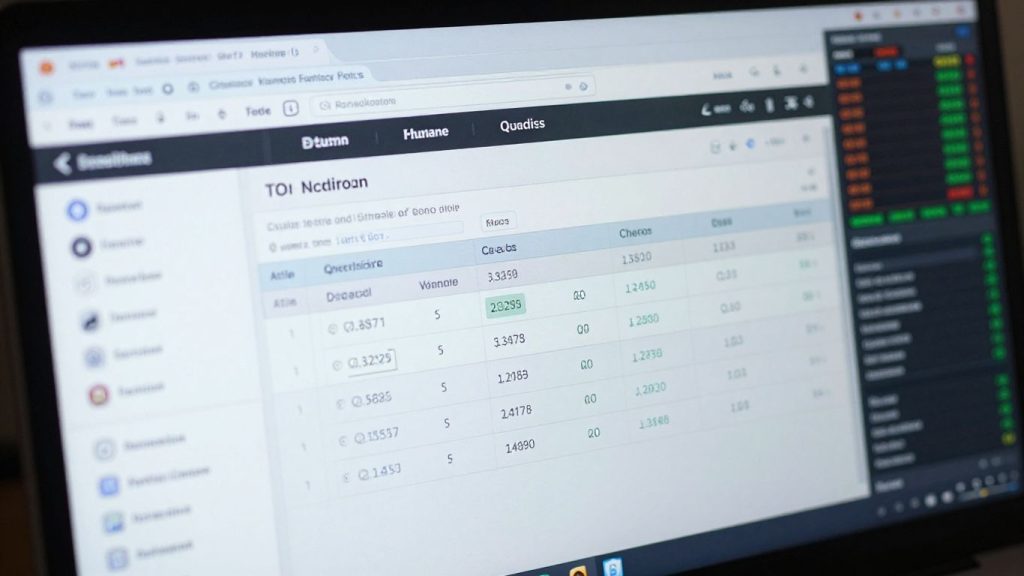
So, you’ve got thinkorswim and you’re ready to trade. That’s great! This platform can seem a bit much at first, with all its buttons and menus. But honestly, once you get the hang of it, it’s a pretty solid tool. This guide is just to help you get around the basics and find what you need. We’ll cover how to set it up, how to watch your stocks, and how to actually make a trade. Think of it as a friendly walkthrough, not some super technical manual. Let’s get this done.
Key Takeaways
- Get familiar with the main thinkorswim layout, like the Overview and Trade tabs, to quickly find what you need.
- Set up your watchlists to keep an eye on the stocks you care about, and make sure the right info is showing.
- Learn how to use the Trade tab for placing buy and sell orders, and always double-check before you send them.
- Explore advanced tools like options trading and the Analyze screen to get a deeper look at your investments.
- Use the More tab to find help, educational videos, and customize your thinkorswim settings.
Getting Started with thinkorswim
Welcome to thinkorswim! If you’re new to this platform, it might seem a bit overwhelming at first, but don’t worry. We’ll break down the basics to get you comfortable.
Understanding the thinkorswim Interface
The thinkorswim platform has a lot going on, but it’s designed to be organized. When you first log in, you’ll see a main dashboard. Think of it as your command center. It’s where you’ll find all the tools and information you need to trade. The layout is generally divided into a few key areas: the top menu bar, the left-hand sidebar (which can be customized), and the main content area where specific tools or charts will appear.
The platform is highly customizable. Don’t feel like you have to use it exactly as it appears when you first log in. You can change themes, rearrange windows, and set up alerts to fit how you like to trade.
Navigating the Tab Bar
At the bottom of the screen, you’ll find the main tab bar. This is your primary way to move between different sections of the platform. Each tab represents a major function:
- Overview: This is your landing page. It gives you a snapshot of your accounts, positions, and market movers. You can customize what you see here.
- Watchlist: Here’s where you’ll keep track of the stocks, ETFs, or other securities you’re interested in. You can create multiple watchlists for different purposes.
- Trade: This is where you’ll actually place buy and sell orders. It’s designed for quick execution and analysis before you commit to a trade.
- Analyze: If you want to dig deeper into potential trades, explore risk/reward scenarios, or check your portfolio’s performance, this is the tab to use.
- Scan: Need to find specific stocks based on certain criteria? The Scan tab lets you set up custom scans to find opportunities.
- More: This tab is a catch-all for other features, including settings, support, and educational resources.
Customizing Your Overview Tab
The Overview tab is your personal dashboard, and you can tailor it to show what matters most to you. When you first look at it, you’ll see several modules or widgets. These can include things like account balances, profit and loss summaries, and market movers.
To change what you see, look for a gear icon or a similar settings button within the Overview tab. This will usually open up a menu where you can add, remove, or rearrange these widgets. You can also select which specific account or accounts you want the Overview tab to display information for. This is super handy if you have multiple trading accounts or a paper trading account you want to monitor separately.
Mastering Watchlists on thinkorswim
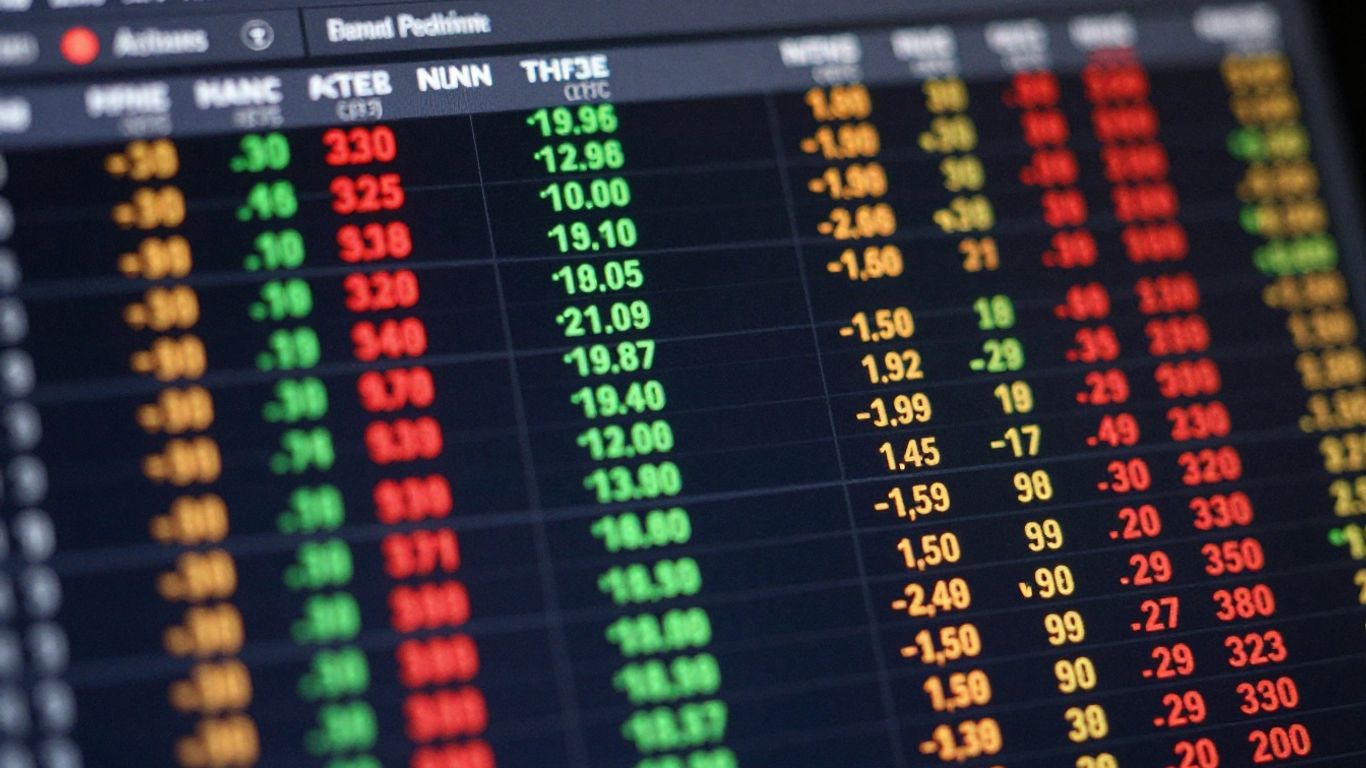
Watchlists are your personal stock-tracking tools within thinkorswim. They let you keep an eye on specific stocks, ETFs, or indexes that interest you, all in one place. Think of it as your custom stock ticker, but way more powerful. The best part? Any watchlist you create syncs across all your devices – desktop, web, and mobile. So, whether you’re at your desk or on the go, your lists are always up-to-date.
Creating and Managing Watchlists
Getting a watchlist set up is pretty straightforward. You’ll find the Watchlist tab right on the main bar. From there, you can create a new list, name it something that makes sense to you, and then start adding symbols. Just type in the ticker symbol or the company name, hit the plus sign, and boom, it’s added. You can keep adding as many as you need. You can also switch between different lists you’ve already made or even delete ones you no longer use.
- Create New Watchlist: Tap the option to start a fresh list.
- Name Your List: Give it a clear, descriptive name.
- Add Symbols: Type in ticker symbols or company names and add them.
- Manage Existing Lists: Switch between, edit, or delete lists as needed.
Customizing Watchlist Columns
What good is a watchlist if it doesn’t show you the info you care about? thinkorswim lets you tweak the columns displayed. You can add or remove data points like the current price, daily change, volume, or even more technical indicators. To do this, just right-click on any column header and select ‘Customize…’. A window pops up showing all the available columns. You can search for specific ones or browse through categories. Add the ones you want by clicking the plus icon, and remove ones you don’t need. You can also drag and drop columns to arrange them in the order that makes the most sense for your analysis. This level of customization means you see exactly what you need at a glance.
Here’s a look at some common column types:
| Column Type | Description |
|---|---|
| Price | Current trading price of the security. |
| Change | Difference between current and previous close. |
| % Change | Percentage difference from the previous close. |
| Volume | Number of shares traded in the current session. |
| Day High / Low | Highest and lowest price during the session. |
| Moving Averages | Technical indicators showing average prices. |
Accessing Quote Details
Once you have your watchlist set up, you can dig deeper into any specific stock. Just click on a symbol in your watchlist. This opens up the quote details screen, which is like a command center for that particular security. From here, you can see a detailed price chart, read the latest news, check out the options chain if it’s an optionable stock, or even look at analyst forecasts. It’s all about getting a quick, comprehensive view of what’s happening with a stock you’re watching.
The quote details screen is where you can really get a feel for a specific stock. It pulls together charts, news, and other key data, making it easier to decide if it’s a good fit for your portfolio or if you should pass.
Executing Trades on thinkorswim
Alright, let’s talk about actually putting on a trade in thinkorswim. This is where the rubber meets the road, right? After you’ve done your homework and picked out what you want to buy or sell, you need a way to get that order into the market. Thinkorswim makes this pretty straightforward, even if you’re new to it.
Using the Trade Tab for Quick Trades
The Trade tab is your go-to for getting orders placed quickly. Many people just call it the "Quick Trade" tab because, well, it’s fast. You can pop in a stock symbol, decide what you want to do, and send it off. It’s designed to be efficient, letting you get in and out without a lot of fuss. You can even set up your trade ticket to show more details if you want, like your account balance or risk profile, by tapping the little gear icon. It’s all about making the process fit how you like to trade.
Understanding the Trade Ticket
When you decide to place a trade, you’ll see what’s called the Trade Ticket. This is where you fill in all the important details. Think of it like filling out a form for your trade.
Here’s a breakdown of what you’ll typically see:
- Symbol: The stock or option you’re trading.
- Action: Whether you’re buying (to open or to close) or selling (to open or to close).
- Quantity: How many shares or contracts you want to trade. You can often specify this by number of shares, a dollar amount, or even a percentage of an existing position.
- Order Type: This is important. You’ll usually choose between a Market order (executes at the best available price right now) or a Limit order (executes only at your specified price or better). There are other types too, but these are the most common to start with.
- Time in Force: How long your order will stay active. Common options are "Day" (expires at the end of the trading day) or "GTC" (Good ‘Til Canceled, stays active until you fill it or cancel it).
- Price: If you’re using a Limit order, this is where you set your price.
You can set a limit on your price to prevent unexpected fills. This is a good safety measure, especially when markets are moving fast. Just tap the lock icon to set it.
Reviewing and Confirming Orders
Before you hit that final "Send" button, thinkorswim gives you a chance to review everything. This is super important. You’ll see a summary screen showing all the details of your order: the symbol, the quantity, the order type, the price, and which account it’s going into. It’s your last chance to catch any mistakes. If something looks off, you can tap "Edit" to go back and fix it. If it all looks good, then you tap "Send" to place the trade. After it’s sent, you can check the status of your order in the "More" tab under "Orders." This is also where you can find information on setting up a Virtual Private Server for automated trading if that’s something you’re interested in.
Advanced Trading Features in thinkorswim
Trading Options on thinkorswim
Options trading can seem a bit complex at first, but thinkorswim makes it pretty manageable. You can get to the options chain right from a stock’s quote details screen. Just find the stock you’re interested in, and then look for the ‘Option Chain’ option. This is where you’ll see all the available calls and puts for that stock, along with their expiration dates and strike prices. You can customize what you see here, too, by tapping the gear icon to add or remove columns like implied volatility or the Greeks.
When you’re ready to place an options trade, you can select a spread type (like single, vertical, or butterfly), choose the number of strikes you want to view, and even pick a specific exchange if you have one in mind. For a simple covered call, you’d select ‘Single’ spread. It’s a good idea to practice these trades in the paperMoney software application before using real money, especially if you’re new to options.
Analyzing Positions and Portfolios
Keeping tabs on your investments is key, and thinkorswim offers tools to help you see how your positions are doing. You can access this by tapping ‘Positions’ on the tab bar. From there, you can select individual stocks or your entire portfolio to analyze. This screen gives you a snapshot of your current holdings, including things like cost basis, market value, and profit or loss.
Here’s a quick look at what you might see:
- Symbol: The ticker symbol of the investment.
- Quantity: How many shares or contracts you own.
- Cost Basis: The average price you paid for your holdings.
- Market Value: The current worth of your investment.
- Unrealized P/L: The profit or loss you have on paper, not yet closed.
Being able to see all this information in one place really helps in making informed decisions about whether to hold, sell, or adjust your positions.
Utilizing the Analyze Screen
The Analyze screen is where you can really dig into the potential risks and rewards of a trade. You can get to it from the Positions tab by selecting the checkbox next to a symbol or your whole portfolio and then pulling down the ‘Analyze’ bar. This tool lets you look at things like risk profiles, beta weight, and price slices. It’s a powerful way to backtest strategies or see how a potential trade might perform under different market conditions. You can set up various scenarios to see how your P&L might change, which is super helpful for managing risk before you even place a trade. It’s all about understanding the ‘what ifs’ before they happen. You can also access educational videos on trading from the ‘More’ tab to help you understand these features better.
Leveraging thinkorswim Tools and Resources
Exploring the More Tab
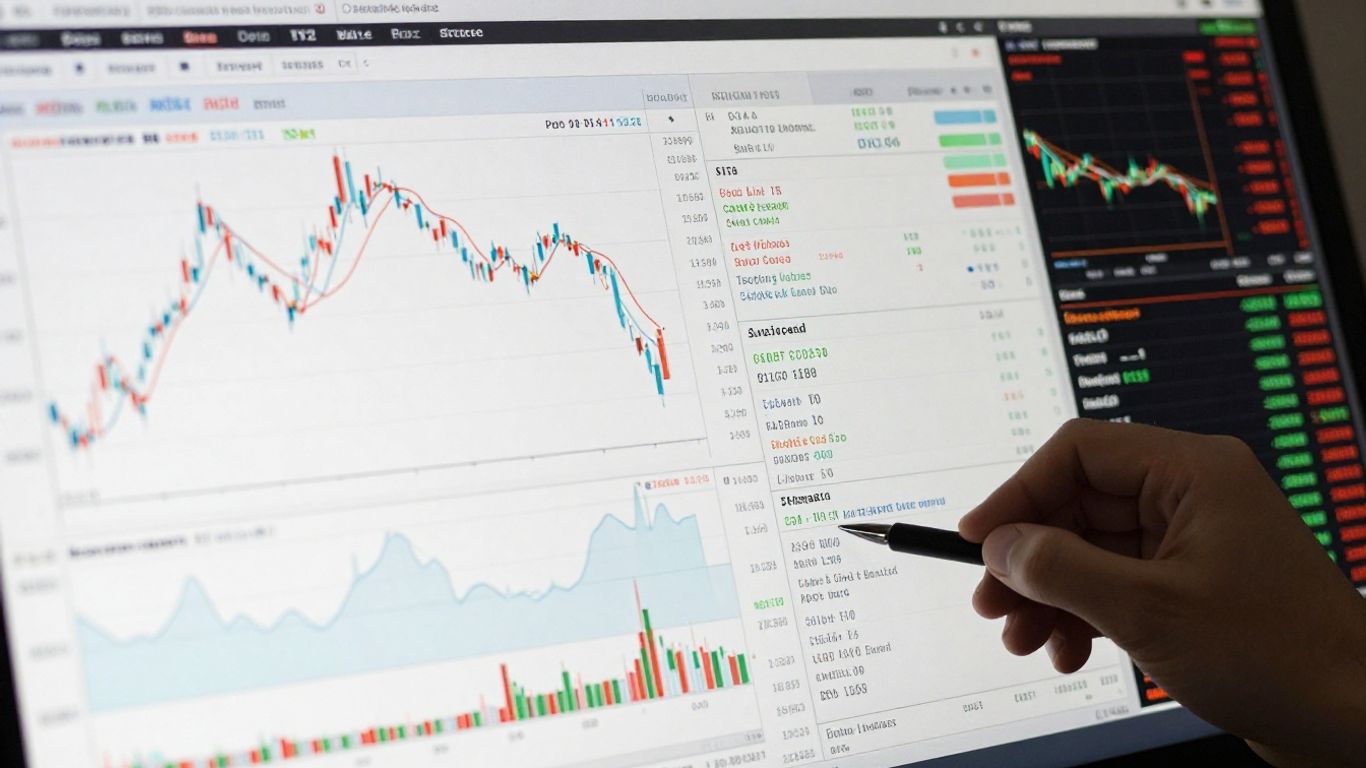
The ‘More’ tab is your go-to spot for a whole bunch of useful stuff that doesn’t quite fit anywhere else. Think of it as the platform’s utility drawer. You can find things like your order history, account balances, and messages all neatly organized here. It’s also where you can set up alerts for specific price movements or news events, which is pretty handy for staying on top of your investments without constantly watching the screen. Plus, there’s a section for managing cash transfers between your accounts. It’s all about keeping the important administrative and informational bits easily accessible.
Accessing Support and Education
If you ever get stuck or just want to learn more, the ‘More’ tab has you covered. There’s a direct link to live chat support, so you can talk to a real person if you need help with the platform. They’re available even outside of regular U.S. trading hours, which is a nice bonus. Beyond live help, there’s a whole library of educational videos and articles. These cover everything from basic platform functions to more complex trading strategies. It’s a great way to build your knowledge base at your own pace.
Utilizing Trader TV and Chat Rooms
For real-time market insights, check out ‘Trader TV’. This feature offers live market coverage from Schwab Network analysts, and you can even catch live feeds from CNBC’s U.S., Europe, and Asia channels. It’s like having a financial news channel right within the thinkorswim platform. Then there are the ‘Chat Rooms’. These are community spaces where you can connect with other traders, discuss market news, and share ideas. It’s a good way to get a feel for what other people are thinking and to learn from a wider community. Just remember to take everything you read in chat with a grain of salt, of course.
The ‘More’ tab consolidates a lot of the platform’s support, educational, and community features. It’s designed to be a central hub for users who need assistance, want to expand their trading knowledge, or wish to engage with the broader trading community. Making good use of these resources can really help you get more out of the thinkorswim platform.
Here’s a quick look at what you’ll find:
- Orders: Review all your past and present orders.
- Alerts: Set up and manage notifications for price changes or news.
- Balances: Check your account’s financial standing.
- Messages: See important communications from the platform.
- Trader TV: Live market news and analysis.
- Chat Rooms: Connect with other traders.
Customizing Your thinkorswim Experience
Making thinkorswim work for you is a big part of trading effectively. It’s not just about the tools, but how you arrange them and set them up. Thinkorswim lets you tweak a lot of things to fit your style.
Personalizing App Themes
First off, you can change how the whole application looks. This is pretty straightforward. You can pick between a light theme, which has a white background, or a dark theme, which uses black. It’s mostly about what your eyes prefer, especially if you’re staring at the screen for hours. To change this, you usually go into the settings menu. It’s a simple choice, but it can make a difference in comfort.
Managing Login and Security Settings
Security is important, and thinkorswim gives you options here. You can set up things like two-factor authentication to add an extra layer of protection when you log in. This might involve getting a code sent to your phone or using an authenticator app. Using these security features helps keep your account safe from unauthorized access. It’s a good idea to review these settings periodically to make sure they’re still what you want.
Configuring Notifications
Notifications can be super helpful, or they can be annoying if you get too many. Thinkorswim lets you set up alerts for different things. You might want to know when a stock hits a certain price, or when there’s news about a company you’re watching. You can usually find these settings under a ‘Notifications’ or ‘Alerts’ section. Here’s how you might set up a price alert:
- Go to the ‘Alerts’ section.
- Select the symbol you want to track.
- Choose the condition (e.g., ‘Last’ price, ‘Bid’ price).
- Set the price level or percentage change.
- Decide if you want an audible alert, a visual one, or both.
It’s also possible to customize your chart settings, which can affect how you see price movements and technical indicators. You can adjust things like colors, time intervals, and the studies displayed on your charts to better suit your trading analysis.
Setting up your platform the way you like it isn’t just about looks; it’s about making the tools you use most accessible and efficient. Take some time to explore these customization options. It can save you time and reduce frustration when you’re actively trading.
Wrapping It Up
So, we’ve gone through a lot of what thinkorswim has to offer, from setting up your account to placing trades and checking your positions. It might seem like a lot at first, and honestly, it can be. But the more you use it, the more you’ll get the hang of it. Remember, the paperMoney account is there for you to practice without risking real cash, which is a pretty sweet deal. Don’t be afraid to click around and explore all the different tabs and tools. You’ll figure out what works best for your trading style. Keep practicing, and you’ll be navigating thinkorswim like a pro before you know it.
Frequently Asked Questions
What is the main purpose of the thinkorswim platform?
Thinkorswim is a powerful tool designed to help you trade stocks, options, and other investments. It offers many features to help you research, plan, and execute your trades, all in one place.
How can I get started with thinkorswim?
To begin, you’ll want to get familiar with the main layout, called the interface. You’ll then learn to use the tab bar at the bottom to move between different sections like Overview, Watchlist, and Trade. Customizing your Overview tab is a good first step to see the information that matters most to you.
What are watchlists and how do I use them?
Watchlists are simply lists you create to keep an eye on specific stocks or investments. You can add or remove items, and even change what information you see for each one, like its price or how much it has changed today.
How do I actually place a trade on thinkorswim?
The ‘Trade’ tab is where you’ll go to buy or sell. You’ll enter the investment’s symbol, decide if you want to buy or sell, choose the type of order (like a limit order), how many shares, and at what price. Always double-check everything before sending your order.
Can I practice trading before using real money?
Absolutely! Thinkorswim has a ‘paperMoney’ account. This is like a practice account where you can make pretend trades with virtual money to get comfortable with the platform and test your strategies without any risk.
Where can I find help if I get stuck?
If you need assistance, the ‘More’ tab is your go-to spot. It has links to support chat, educational videos, tutorials, and other resources to help you learn more about thinkorswim and trading in general.