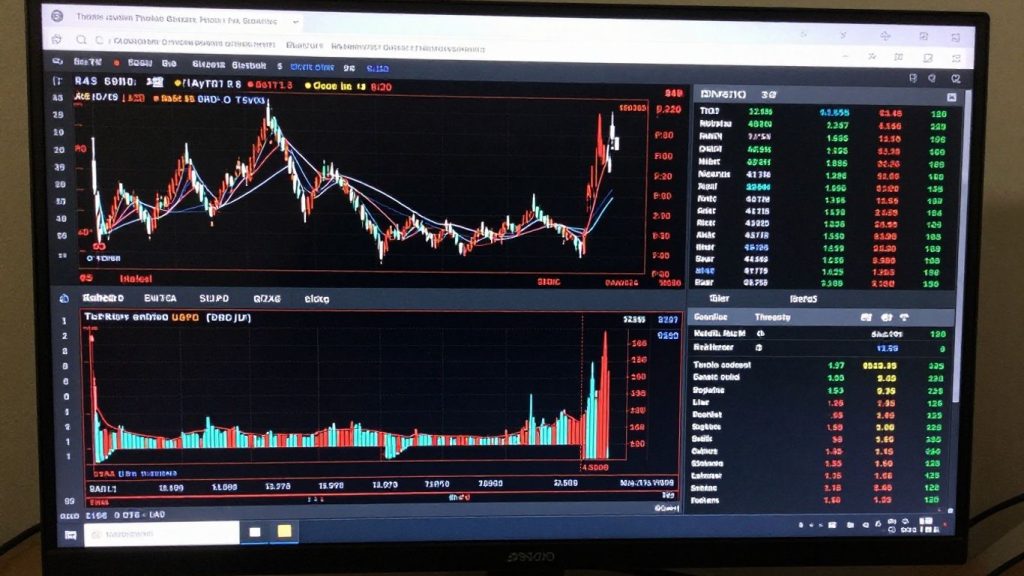
So, you’ve heard about thinkorswim desktop and want to know what it’s all about? It’s a trading platform that a lot of people use. It can seem a bit much at first, with all its buttons and menus. But once you get the hang of it, it’s pretty useful for watching the market and making trades. This guide is here to break down the thinkorswim desktop platform so you can feel more comfortable using it.
Key Takeaways
- Get familiar with the main parts of the thinkorswim desktop interface to know where things are.
- Learn how to set up the platform specifically for trading stocks and options, and how to manage your watchlists.
- Understand how to use the charting tools, including adding indicators and drawing lines, to analyze price movements.
- Figure out how to place different types of orders and use alerts to keep track of your trades.
- Explore extra features like the stock screener and the paper trading account for practice.
Navigating the thinkorswim Desktop Platform
Alright, let’s get acquainted with the thinkorswim desktop. It might look a bit busy at first glance, but once you get the hang of it, it’s pretty straightforward. Think of it like learning to drive a new car; there are a lot of buttons and screens, but they all serve a purpose.
Platform Overview Tour
When you first open thinkorswim, you’ll see a few main areas. There’s the main menu bar up top, which is where you’ll find access to different sections like ‘Trade’, ‘Analyze’, ‘Money & Positions’, and ‘Settings’. Below that, you’ve got your main workspace, which is where all the action happens. This is where you’ll spend most of your time. On the left side, there’s usually a menu for quick access to things like watchlists and market scanners. It’s designed to give you a lot of information without feeling too cramped.
Understanding Key Sections
Let’s break down some of the main tabs you’ll see:
- Trade: This is your go-to for actually placing orders, whether it’s for stocks, options, futures, or forex. You’ll see different layouts here depending on what you’re trading.
- Analyze: This section is all about research and planning. You can look at charts, run scans, and check out different strategy builders.
- Money & Positions: Here’s where you keep track of your account balance, your open trades, and your overall financial picture.
- Education: Don’t skip this! It’s packed with tutorials and videos to help you learn the ropes.
The platform is built to be flexible. You can arrange windows, change layouts, and set up different views to suit how you like to trade. It takes a little time to figure out what works best for you, but it’s worth the effort.
Customizing Your Workspace
This is where thinkorswim really shines. You can make it your own. Think about what information is most important to you when you’re trading. Do you need to see a lot of charts at once? Or maybe you prefer a clean layout with just a few key metrics?
Here are a few ways to tweak things:
- Layouts: You can save different screen arrangements as layouts. So, you might have one layout for stock trading and another for options analysis.
- Gadgets: These are small tools you can add to your workspace, like a calendar, a news feed, or a calculator.
- Color Schemes & Fonts: Go to ‘Settings’ and then ‘Customize’. You can change the colors and font sizes to make it easier on your eyes, especially if you’re staring at the screen for hours.
It’s all about making the platform work for you, not the other way around. Spend some time playing around with these settings; you’ll find it makes a big difference in how efficiently you can trade.
Setting Up thinkorswim Desktop for Trading
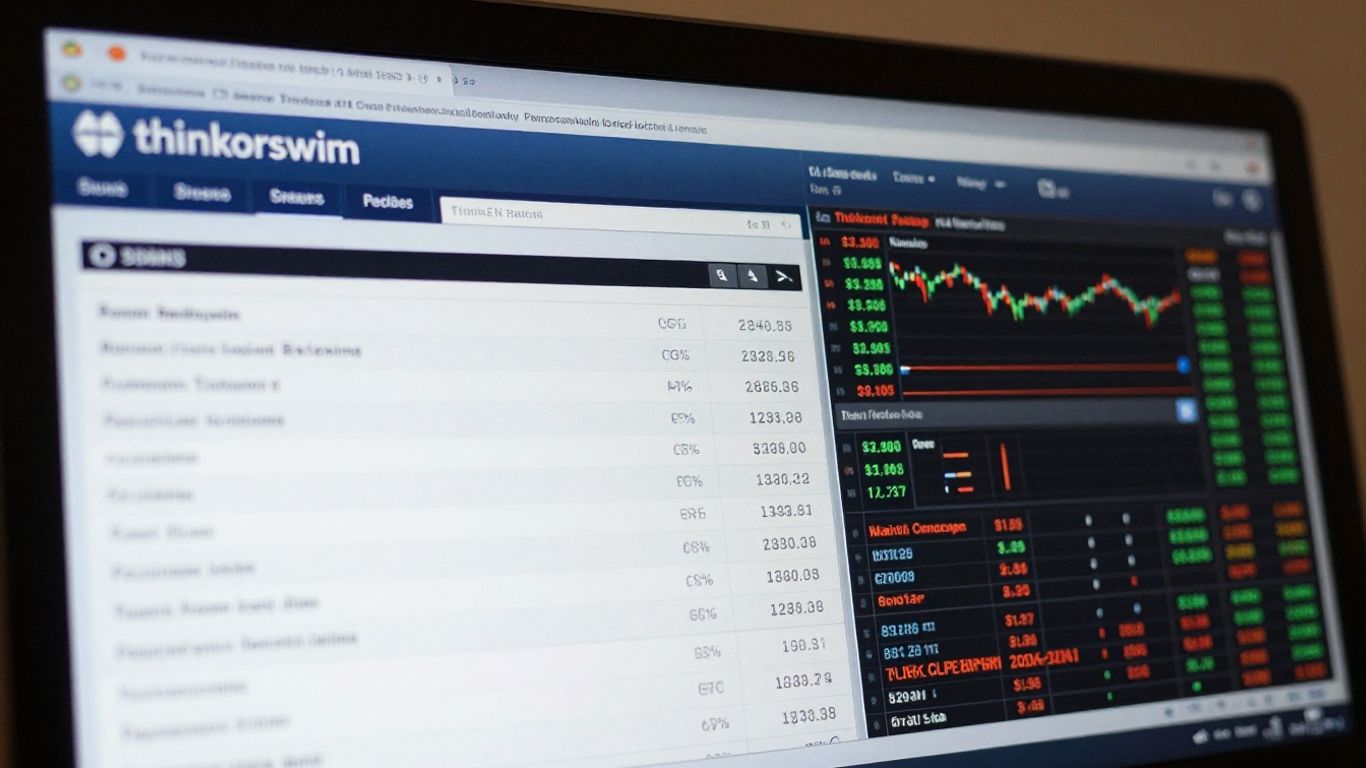
Alright, so you’ve got the thinkorswim desktop fired up and you’re ready to actually start trading. Before you jump in, it’s a good idea to get things set up just right for stocks, options, or whatever you’re planning to trade. It makes things a lot smoother when you’re not fumbling around trying to find what you need.
Stock Trading Configuration
Getting your platform ready for stock trades is pretty straightforward. You’ll want to make sure your main trading screen is set up so you can see the stock you’re interested in, its price action, and have a quick way to place an order. Think about what information is most important to you when looking at a stock. Is it the daily price movement, the volume, or maybe some key technical levels?
Here are a few things to consider:
- Layouts: You can save different screen layouts. Maybe one layout for watching a few stocks and another for deep-diving into a single stock’s chart.
- Quick Order Entry: Set up the ‘Trade’ tab so the deal ticket is easy to access. You can often set default order types or quantities here.
- Watchlists: Keep your stock watchlists organized. Grouping them by sector or by your investment strategy can be a real time-saver.
It’s easy to get caught up in all the bells and whistles, but for stock trading, focus on having a clear view of the price and a simple way to enter your trades. Don’t overcomplicate it at first.
Options Trading Setup
Options trading can get a bit more complex, so setting up thinkorswim specifically for it is a smart move. The ‘Option Chain’ is your best friend here. You’ll want to customize it to show the expiration dates and strike prices that you typically use. There’s no point in scrolling through months of expirations if you only trade weekly options, right?
- Customize the Option Chain: You can filter by expiration, strike price distance, and even the type of options (calls or puts).
- Default Strategies: If you often trade specific option spreads like a vertical or a butterfly, you can set these up as defaults.
- Visual Aids: Consider adding indicators to your option chain view if the platform allows, or ensure your chart tab is set up to show relevant option Greeks if you’re analyzing them there.
Watchlist Management
Your watchlists are like your personal stock market dashboard. Keeping them organized means you can quickly see what’s happening with the stocks you care about. Thinkorswim lets you create multiple watchlists, which is super handy.
- Create Specific Lists: Make lists for different purposes, like ‘Tech Stocks,’ ‘Dividend Plays,’ ‘Stocks to Watch,’ or ‘My Holdings.’
- Add Relevant Columns: Don’t just show the price. Add columns for things like daily change, volume, market cap, or even custom calculations if you’re feeling fancy.
- Sort and Filter: You can sort your watchlists by any column, making it easy to find the biggest movers or the stocks with the highest volume on any given day.
Keeping your watchlists clean and relevant will save you a ton of time and help you spot opportunities faster. It’s all about making the platform work for you, not the other way around.
Leveraging thinkorswim Desktop Charting Tools
Alright, let’s talk charts. This is where you’ll spend a good chunk of your time if you’re serious about understanding what a stock or option is doing. Thinkorswim gives you some pretty solid tools right here in the charting section.
Basic Chart Navigation
First off, getting around is pretty simple. You can load up a chart for any stock or option you’re interested in. The main thing is knowing how to zoom in and out, and how to scroll through different time periods. You can adjust the time frame from minutes all the way up to years, which is handy for seeing both short-term action and long-term trends. The ability to quickly switch between these timeframes is key for making timely decisions.
Applying Technical Indicators
This is where things get interesting. Thinkorswim calls technical indicators ‘Studies’. There are tons of them built-in, from simple moving averages (SMAs) to more complex ones like the Relative Strength Index (RSI) or MACD. You just click on the ‘Studies’ button, search for what you want, and add it to your chart. You can also tweak the settings for each indicator to fit your trading style. For example, you might want to change the period on an SMA from the default 20 to 50 if you’re looking at a longer-term trend.
Here’s a quick look at some common indicators and what they do:
- Moving Averages: Smooth out price data to show the average price over a specific period. Useful for identifying trends.
- Bollinger Bands: Measure volatility. They expand when the market is volatile and contract when it’s calm.
- RSI (Relative Strength Index): A momentum oscillator that measures the speed and change of price movements. It can help identify overbought or oversold conditions.
Utilizing Drawing Tools
Beyond indicators, you’ve got drawing tools. These let you mark up your charts directly. Think trendlines, support and resistance levels, or even just notes. You’ll find these tools along the side of the chart window. You can draw lines, arrows, text boxes, and even Fibonacci retracements. This is great for visually tracking price patterns or marking important price levels you’re watching. It helps you keep your analysis organized right on the chart itself.
It’s easy to get lost in all the indicators and drawing tools. The trick is to pick a few that make sense to you and stick with them. Don’t try to use everything at once; it’ll just make your charts look cluttered and confuse you more than help. Focus on what you’re trying to see – is it trend direction, volatility, or specific price levels?
Remember, these charting tools are there to help you see the market more clearly. Don’t be afraid to play around with them and see what works best for your own trading approach.
Executing Trades on thinkorswim Desktop
Alright, so you’ve got your charts looking good and your watchlists set up. Now comes the part where you actually put your plan into action: placing trades. thinkorswim makes this pretty straightforward, but there are a few things to know so you don’t end up with a surprise.
Placing Stock Orders
When you’re ready to buy or sell a stock, you’ll typically do it from the ‘Trade’ tab or directly from a chart. First, find the stock you want by typing its symbol into the search bar. Once you’ve got the stock pulled up, you’ll see what they call a ‘deal ticket’ – usually right at the top of the chart or in the trade section. This is where you tell the system what you want to do.
Here’s a quick rundown of how to get an order in:
- Find your stock: Type the ticker symbol into the search bar.
- Open the deal ticket: Click ‘Buy’ or ‘Sell’ on the ticket itself. You can also often right-click on a chart to bring up options for buying, selling, or setting up an alert.
- Fill in the details: This is where you specify the quantity, the type of order (like a limit order to set a specific price, or a market order to buy/sell at the current best price), and any other conditions.
- Review and submit: Double-check everything before hitting that final ‘confirm’ button. It’s easy to make a mistake, so take a moment to be sure.
Understanding the Deal Ticket
The deal ticket is your main control panel for any trade. It looks simple, but it’s packed with options. You’ll choose whether you’re buying or selling, how many shares you want, and the order type. But it goes further than that. You can set limit orders, which only fill at your specified price or better, or market orders that execute immediately at the best available price. There are also more advanced options like ‘Blast All’ if you want to send out multiple orders at once, or OCO (One Cancels the Other) orders, which are handy for managing risk by linking two orders together – if one fills, the other is automatically canceled.
You can actually adjust orders right on the chart after you’ve placed them. See that little price bubble? You can just click and drag it to a new price level. It’s a neat way to make quick changes without having to pull up the whole ticket again. Just be sure to confirm the adjustment when prompted.
Using Alerts for Trade Management
Constantly staring at the screen isn’t really practical, right? That’s where alerts come in. thinkorswim lets you set up notifications for all sorts of things. Want to know when a stock hits a certain price? Just click on the chart at that price level and set an alert. You can also set alerts based on technical indicators or other conditions. These alerts pop up on your platform, so you don’t miss important price moves or events. All your alerts are managed in one spot, so you can tweak or delete them as needed. It’s a good way to keep tabs on your trades without being glued to your monitor.
Advanced Features of thinkorswim Desktop
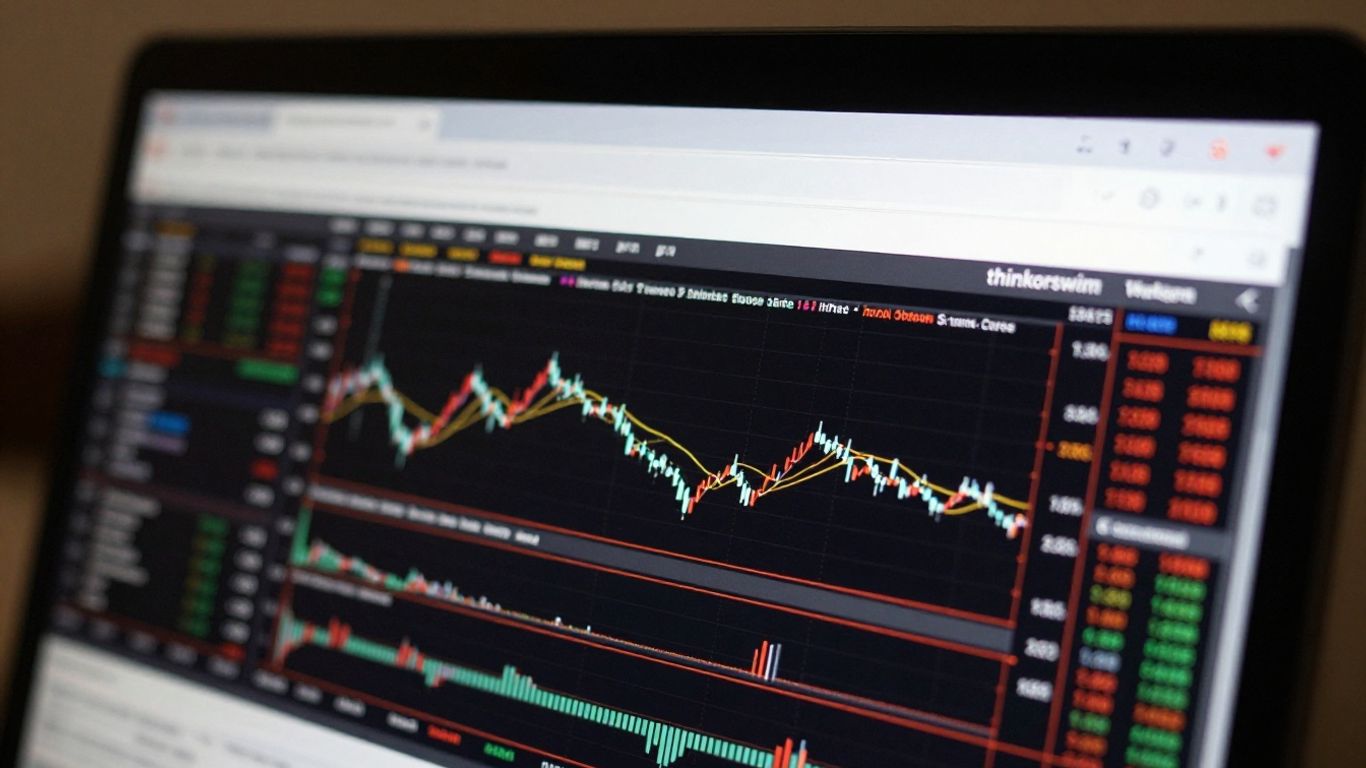
Beyond the basics, thinkorswim desktop has some really neat tools that can make a big difference in how you trade. It’s not just about placing orders; it’s about having the right information and control at your fingertips.
Stock Screener Functionality
This is where you can really dig into finding opportunities. The stock screener lets you filter through thousands of stocks based on a huge list of criteria. You can set parameters for things like:
- Market Cap: Find companies of a certain size.
- Volume: Look for stocks that are actively traded.
- Technical Indicators: Screen for stocks hitting specific price levels or showing certain chart patterns.
- Fundamental Data: Filter by earnings per share, P/E ratios, or dividend yields.
You can even save your custom screening criteria to run them again later. It’s a powerful way to narrow down your focus to only the stocks that meet your specific trading strategy. You can explore customizing the platform to make sure your screening results are easy to see.
Analyzing Market Data
thinkorswim doesn’t just show you prices; it gives you ways to understand the market better. The platform offers tools to analyze options data, futures, and forex, all within the same interface. You can look at things like implied volatility, open interest, and Greeks for options, which are super important for options traders. For stocks, you can pull up heat maps to see sector performance at a glance or use the earnings calendar to plan around company reports.
The ability to see how different market segments are performing, or to anticipate major news events like earnings, can help you make more strategic decisions about where to allocate your capital and when to enter or exit trades.
Paper Trading Account
This is a big one, especially if you’re new or trying out a new strategy. The paper trading account lets you practice trading with virtual money in real market conditions. You get the full thinkorswim experience without risking any actual cash. It’s a safe space to:
- Test out different order types and see how they work.
- Practice using the charting tools and indicators.
- Get a feel for the platform’s speed and functionality.
It’s a smart move to spend time here before jumping into live trading. You can learn how to set up for stocks or options in a risk-free environment. This helps build confidence and refine your approach before real money is on the line.
Wrapping It Up
So, we’ve gone through a lot of what thinkorswim’s desktop platform can do. It might seem like a lot at first, and honestly, it can be. But remember, you don’t have to learn everything all at once. Start with the basics, like setting up your watchlists and getting comfortable with placing trades. As you get more used to it, you can start exploring the more advanced features, like the stock screener or customizing charts with different indicators. The key is to just keep using it and playing around with the settings. You’ll find your own way of using the platform that works best for you. Happy trading!
Frequently Asked Questions
What is thinkorswim Desktop?
thinkorswim Desktop is a powerful computer program for trading stocks and options. It offers many tools to help you see market information, study charts, and make trades.
How do I get started with thinkorswim Desktop?
To start, you’ll want to take a tour of the platform to see where everything is. Then, you can set it up for stocks or options trading, and create watchlists to keep an eye on the investments you’re interested in.
Can I customize thinkorswim Desktop to my liking?
Absolutely! You can change how the platform looks, like colors and text size. You can also arrange different sections and set up your watchlists just the way you like them.
What are charting tools used for?
Charting tools let you look at how stock prices have moved over time. You can add special lines and indicators to help you understand trends and make trading decisions. You can also draw on charts to mark important price levels.
How do I place a trade on thinkorswim Desktop?
You can place trades using the ‘Deal Ticket,’ which appears when you look at a stock. You can choose to buy or sell, and there are options to set up alerts to help you manage your trades.
What is Paper Trading?
Paper Trading is a great way to practice trading with fake money. You can use all the real tools and features of thinkorswim Desktop without risking your actual cash, helping you learn before you trade for real.