So, you want to get MetaTrader 5 running on your Windows 11 computer? It’s not too tricky, really. This guide is here to walk you through the whole process, from figuring out where to get the download to getting it all set up and ready for your trading. We’ll cover the steps so you can start using this popular trading platform without a hitch. Let’s get started.
Key Takeaways
- To get MetaTrader 5 for Windows 11, you can download it directly from the official MetaQuotes website or through your chosen forex or CFD broker.
- Before downloading, make sure your PC meets the minimum system requirements, especially if you’re running Windows 11.
- The installation process involves running the downloaded file, accepting the license agreement, and following the on-screen prompts.
- After installation, you’ll need to log in with your existing trading account details or create a new demo or real account.
- Once logged in, you can start exploring the platform’s features, customize your trading environment, and even set up automated trading with Expert Advisors.
Downloading MetaTrader 5 for Windows 11
So, you’re ready to get MetaTrader 5 (MT5) onto your Windows 11 machine. It’s a pretty solid platform for trading, offering more than just the basics. Before you download, though, you’ll need to pick a broker. Think of it like choosing a bank – you want one that’s reliable and fits what you need.
Choosing a Broker for MetaTrader 5
This is a big step. You can’t just use MT5 without an account from a broker. When you’re looking around, make sure the broker is regulated by a serious financial authority. Also, check out their fees, like spreads and commissions, to see if they make sense for your trading style. Reading what other people say about them can also give you a good idea of what to expect. Some brokers, like XS.com, make the account opening process pretty straightforward.
Downloading from the Official MetaQuotes Site
If you want to go straight to the source, the MetaQuotes website is the place. It’s usually the most direct way to get the installer. Just head over to their site, look for the download link for Windows, and save the file. It’s typically an .exe file, so your browser will handle it like any other program download. This is a safe bet for getting a clean version of the platform.
Downloading from Your Broker’s Website
Most brokers that support MT5 will have a download link right on their own website. This can be a bit more convenient because it often links directly to an account setup process. You’ll usually find it in a section labeled ‘Platforms’ or ‘Trading Software.’ After clicking the download button on their site, the installer file will be saved to your computer, ready for the next step. It’s a good idea to check their platform page for the most up-to-date download link.
Installing MetaTrader 5 on Your PC
So, you’ve got the installer file ready to go. Now comes the part where we actually get MetaTrader 5 onto your computer. It’s usually a pretty straightforward process, not too different from installing most other programs you’d download from the internet. Just follow these steps, and you’ll be up and running in no time.
Running the Installation File
First things first, find that installer file you downloaded. It’s typically an .exe file, and you’ll likely find it in your computer’s ‘Downloads’ folder. Double-click on it to start the process. If your antivirus software pops up with a warning, don’t panic – it’s often just being cautious. You might need to give it permission to run, especially if you’re on Windows 11. Sometimes, right-clicking the file and selecting ‘Run as administrator’ can help avoid any permission hiccups.
Accepting the License Agreement
Once the installer kicks off, you’ll usually be presented with a license agreement. This is that block of text that nobody really reads, but you do need to agree to it to continue. Make sure you scroll through it and then check the box that says you accept the terms. After that, you’ll typically click ‘Next’ or ‘Continue’ to move forward. The installer might also ask where you want to install the program. For most users, the default location is perfectly fine, so you can usually just stick with that.
Completing the Installation Process
After accepting the terms and confirming the installation location, the program will start copying files to your computer. This part usually doesn’t take too long, maybe a minute or two depending on your PC’s speed. You’ll see a progress bar showing you how far along it is. Once it’s finished, you’ll get a confirmation message. Sometimes, it might offer to launch MetaTrader 5 right away. If it does, you can click ‘Finish’ and let it open, or close the installer and open it manually later.
Launching and Logging Into MetaTrader 5
Alright, so you’ve got MetaTrader 5 downloaded and installed on your Windows 11 machine. That’s a big step! Now it’s time to actually open it up and get connected to your trading world. It’s usually pretty straightforward, but let’s walk through it.
Opening MetaTrader 5 After Installation
Most of the time, MetaTrader 5 will pop open automatically right after the installation finishes. If it doesn’t, no worries. Just find the MetaTrader 5 icon on your desktop or in your Start menu and give it a click. It might take a few seconds to load up the first time, so be a little patient.
Logging Into Your Trading Account
Once MetaTrader 5 is running, you’ll likely see a login window. This is where you connect to your broker. You’ll need your trading account details, which usually include:
- Login/Account Number: This is your unique identifier with the broker.
- Password: The password you set up when you opened your account.
- Server: Your broker will tell you which server to connect to. This is important because different servers handle different accounts.
If you downloaded MT5 directly from your broker’s website, they’ve probably pre-selected their server for you. If you downloaded it from the MetaQuotes site, you’ll need to pick your broker from the list and then enter your server details. Make sure you have these login credentials handy before you start.
Creating a New Demo or Real Account
Don’t have a trading account yet, or maybe you want to practice first? No problem. Right in that initial login window, you should see an option to either open a new demo account or a new real account. A demo account is fantastic for getting a feel for the platform and testing strategies without risking any actual money. It uses virtual funds, so you can trade as much as you want. If you’re ready to trade with real money, you can go ahead and open a real account, but remember to start small and trade responsibly.
Getting your login details right is key. Double-check them before you hit ‘Login’. A simple typo can stop you from connecting, and nobody wants that when they’re ready to trade.
Navigating the MetaTrader 5 Interface
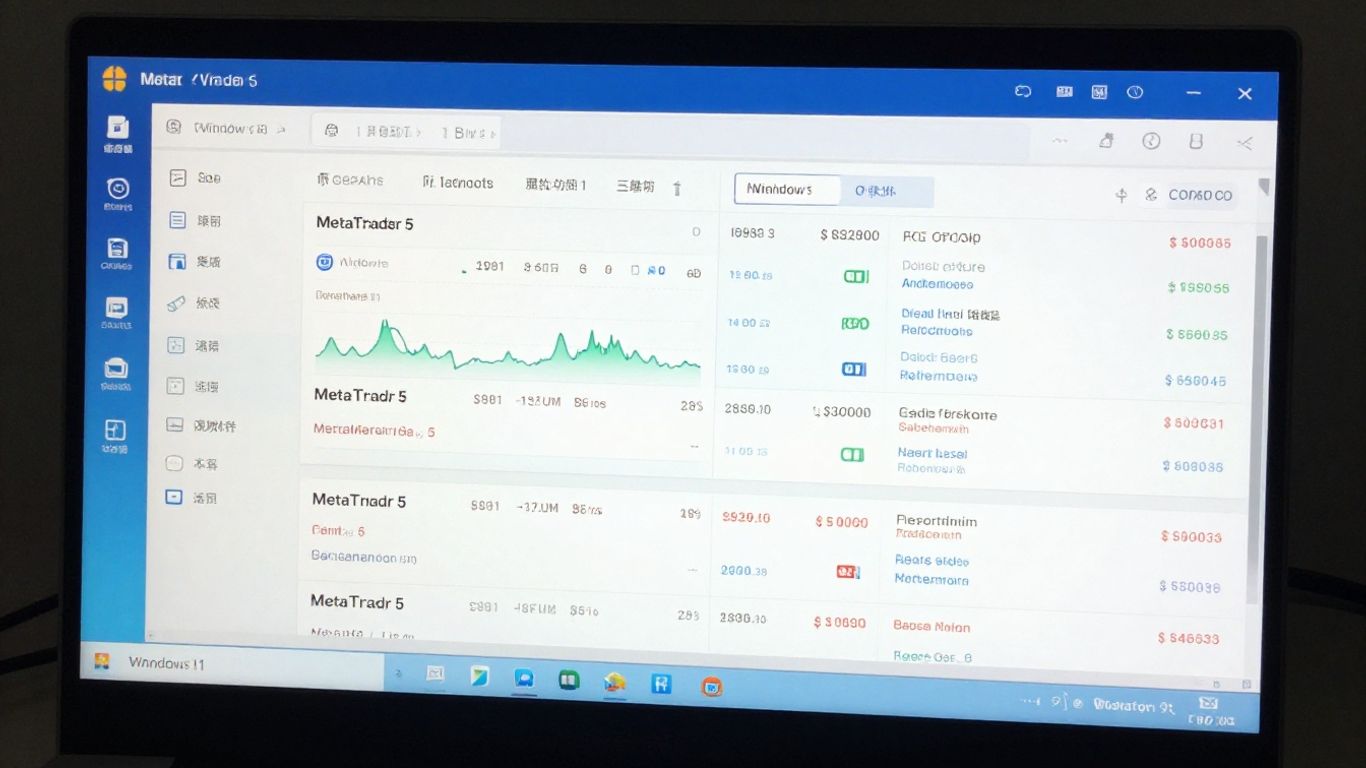
Alright, so you’ve got MetaTrader 5 installed and logged in. Now what? It might look a little busy at first, but don’t worry, it’s pretty organized once you get the hang of it. Think of it like learning a new city – you start with the main streets and landmarks.
Understanding Key Windows: Market Watch, Navigator, Terminal
When you first open MT5, you’ll see a few main areas that are super important for trading.
- Market Watch: This is where you see all the prices for different financial instruments, like currency pairs or stocks. It’s updated in real-time, so you know what’s happening out there. You can usually add or remove instruments from this list.
- Navigator: Think of this as your control panel. It’s where you’ll find your trading accounts, any Expert Advisors (EAs) you’re using for automated trading, and custom indicators you’ve added. It makes it easy to drag and drop these onto your charts.
- Terminal: This is your command center for actual trading. Here, you’ll see your open trades, your trading history, news updates, and alerts. It’s where you manage everything related to your live or demo account activity.
These three windows are your go-to spots for pretty much everything you’ll do in MT5. Getting comfortable with where to find things in each of them will make a big difference in how quickly you can react to market changes.
Utilizing Charting Tools and Indicators
Charts are probably what you’ll spend most of your time looking at. MT5 gives you a lot of ways to look at price movements. You can change the chart type – like bar, candlestick, or line charts – and adjust the timeframes, from minutes to months.
MT5 comes with a bunch of built-in technical indicators, like Moving Averages or RSI, that can help you spot trends or potential trading opportunities. You can add these directly to your charts. Plus, there are drawing tools like trendlines and Fibonacci retracements to mark up your charts yourself.
Exploring the Built-in Economic Calendar
For traders who like to keep an eye on big news events that can move markets, MT5 has a built-in economic calendar. You can find it usually under the "View" menu or sometimes in the "Toolbox" window. It shows you upcoming economic releases, like interest rate decisions or employment reports, along with their expected impact. This is a really handy feature for planning your trades around major market-moving news, and you can even learn more about how to use it effectively. It helps you stay informed without having to check multiple websites.
Here’s a quick look at what you might see:
| Event Type | Country | Importance | Actual | Forecast | Previous |
|---|---|---|---|---|---|
| Interest Rate | United States | High | … | 5.50% | 5.50% |
| CPI | Eurozone | High | … | 2.8% | 3.0% |
| Non-Farm Payrolls | United States | High | … | 180k | 200k |
This calendar is a great way to understand the potential volatility coming up in the markets.
Enhancing Your Trading Experience with MetaTrader 5
So, you’ve got MetaTrader 5 up and running. That’s great! But honestly, just having it installed is only half the battle. The real fun, and where you can actually start making things work better for you, is in tweaking the platform to fit how you trade. It’s not just about looking at charts; it’s about making the platform work for you, not the other way around.
Customizing Your Trading Environment
Think of your trading setup like your workspace. You wouldn’t want a messy desk, right? MT5 is no different. You can really make it your own. For starters, the charts themselves can be changed up a lot. You can pick different color schemes – maybe dark mode if you’re trading late, or bright colors for daytime. You can also save these chart setups as templates. So, if you have a specific way you like to look at the EUR/USD chart with certain indicators, save it! Next time you open that pair, just load the template, and boom, it’s all set up.
Here are a few things you can adjust:
- Color Schemes: Change background, candles, lines, and text colors.
- Chart Templates: Save and load custom chart layouts with indicators and settings.
- Object Visibility: Decide which drawing tools or indicators show up on which charts.
- Profile Management: Save entire workspace layouts, including all open charts and their settings.
Leveraging Expert Advisors for Automated Trading
This is where things get really interesting for some traders. Expert Advisors, or EAs, are basically trading robots. You can get them pre-made or even have one custom-built if you know what you want. They can watch the markets 24/7 and execute trades based on rules you or the programmer set. It’s not magic, though. You still need to understand the strategy behind the EA and monitor its performance. It’s a tool to help you trade, not a way to avoid thinking.
Setting up an EA involves loading it into the Navigator window and attaching it to a chart. You’ll then configure its specific parameters, which often include things like lot size, stop-loss levels, and take-profit targets. It’s important to test any EA thoroughly on a demo account before risking real money.
Installing Custom Indicators and Scripts
Beyond the built-in tools, there’s a whole world of custom indicators and scripts out there. These are often developed by other traders and shared (sometimes for free, sometimes for a price). They can add new ways to analyze price action or automate specific tasks. To install them, you usually just need to place the files into specific folders within your MT5 installation directory. It’s pretty straightforward once you find the right folders.
- Custom Indicators: These add new ways to analyze price data, like unique oscillators or trend-following tools.
- Scripts: These are designed to perform a single, specific action, like closing all open trades with one click.
- Libraries: These contain functions that can be used by other EAs, indicators, or scripts.
Managing Your MetaTrader 5 Installation
If you’re using MetaTrader 5 for more than one account, or just want to keep your platform running smoothly, there are a few details to keep in mind. Getting the most out of MT5 means knowing how to handle multiple installations, swap accounts, and keep the software fresh. Here’s how you can stay on top of your platform setup.
Installing Multiple Instances of MetaTrader 5
Some traders like to run more than one MT5 at the same time. Maybe you’re trading with two brokers, or you want to keep strategies separate. It’s totally doable—just follow the steps below:
- Download the MT5 installer again from the official MetaTrader 5 website or your chosen broker.
- When the installer asks where to install, give this copy a unique folder name (like MT5_ProjectB) so it won’t overwrite the last one.
- Finish the process. Each copy works independently, so you can open them all at once if you like.
Having separate installations helps you organize strategies and keep account settings isolated. It’s a straightforward way to avoid mistakes from mixing up charts or logins.
Switching Between Trading Accounts
You might need to jump between live, demo, or different brokers’ accounts. MT5 lets you do this in just a few clicks, with no need to close and reopen the program:
- Open MT5 and go to the "File" menu.
- Click "Login to Trade Account."
- Enter the login info for the account you want to use. You’ll be switched over in seconds.
It’s fast, so you can keep pace with the markets without missing a beat. Many traders use this feature to monitor several portfolios side-by-side or test new strategies in demo while trading live.
Checking Your MetaTrader 5 Version
Keeping MT5 updated is important for new features and security fixes. You don’t want to get stuck with an outdated platform. Here’s how you can check the current version:
- Launch MT5.
- Navigate to “Help” at the top menu and select "About."
- A pop-up will show your version details.
Here’s a quick layout of version info you’ll see:
| Info Shown | What It Means |
|---|---|
| Version | Build number of MT5 |
| Date | When this version released |
| Copyright | MetaQuotes details |
If you’re behind, MT5 usually reminds you to update at startup or does it automatically. Regular updates keep bugs away and add new tools, so it’s worth getting in the habit of checking once in a while.
Managing MetaTrader 5 doesn’t take a lot of fuss, but a little organization goes a long way. From handling extra installations to switching accounts on the fly, MT5 is flexible enough that you can shape it to match your trading routine without hassle.
Wrapping Up
So, there you have it. Getting MetaTrader 5 onto your Windows 11 computer is pretty straightforward, really. We walked through downloading it, getting it installed, and even logging into your trading account. Once it’s set up, you’ve got a powerful tool right there for checking out the markets and making trades. Just remember to trade smart and keep learning as you go. Happy trading!
Frequently Asked Questions
Is it free to download and use MetaTrader 5?
Yes, you can download and use MetaTrader 5 without paying any money. You can get it straight from the MetaTrader website or through your chosen broker.
Can I use MetaTrader 5 without a trading account?
You can download and install MetaTrader 5 without a broker account. However, to actually trade or test strategies with real market data, you’ll need to link it to a demo or a live trading account provided by a broker.
What’s the main difference between MetaTrader 5 and MetaTrader 4?
MetaTrader 5 is like an upgraded version of MetaTrader 4. It offers more ways to look at charts (timeframes), has a built-in calendar for important economic news, includes more tools for analysis, and lets you trade more than just forex, like stocks and futures, if your broker supports them.
How do I install MetaTrader 5 on my Windows 11 computer?
After downloading the installation file, just double-click it. Follow the simple on-screen steps, agree to the terms, and choose where you want to install it. The program will guide you through the rest.
Why can’t I open MetaTrader 5 after installing it?
Sometimes, your computer’s security software might block the program. Try running the installer again as an administrator, or temporarily turn off your antivirus during installation. Also, make sure your PC hasn’t blocked files from the internet.
Can I have more than one copy of MetaTrader 5 on my computer?
Yes, you can! Just download the installer again. When it asks where to install it, give each copy a different folder name, like ‘MT5_Account2’. This lets you manage different trading accounts or settings separately.