So, you’re looking to get TradingView on your computer, specifically for Windows 10 64-bit? Good choice! TradingView is a super popular platform for checking out charts and doing all sorts of market analysis. While a lot of people use it in their web browser, there’s actually a desktop app that can make things even smoother. This article will walk you through everything you need to know about getting the TradingView download for PC Windows 10 64 bit, from what it is to how to get it running and make it work best for you.
Key Takeaways
- The TradingView desktop app for Windows 10 64-bit gives you a more stable and faster experience than just using the browser.
- Before you download, make sure your Windows 10 is updated (version 22H2 or newer) and you have a 64-bit Intel or AMD processor.
- You can get the TradingView desktop app directly from their website or sometimes through the Microsoft Store.
- The desktop version has cool features like better support for multiple monitors, which is a big deal for traders.
- To get the most out of it, customize your workspace and keep your settings synced across all your devices.
Understanding the TradingView Desktop Application
So, you’re looking to get TradingView on your computer, specifically for Windows 10 64-bit? That’s a smart move. TradingView is a really popular spot for checking out charts and doing all sorts of market analysis. While many folks use it right in their web browser, there’s actually a desktop app that can make things run a lot smoother. This article is going to walk you through everything you need to know about getting the TradingView download for your PC, from what it is to how to get it set up and working best for you.
What Is TradingView Desktop?
Okay, so you probably know TradingView as that charting platform. But did you know they have a desktop app? It’s basically the same TradingView you’re used to, just in its own separate window. This means no more getting lost in a bunch of browser tabs! It’s built to give you a cleaner, more focused trading experience. Think of it as your own personal trading command center, ready to go with a single click.
Benefits of the Desktop Application
Why bother with a desktop app when the browser version works fine? Well, there are a few good reasons:
- Improved Focus: You get fewer distractions from other websites or apps running in the background.
- Better Performance: The desktop app can sometimes run more smoothly than the browser version, especially when you’re dealing with complex charts or a lot of data.
- Native Notifications: You can get real-time alerts without needing to keep a browser window open all the time.
- Multi-Monitor Support: This is a big one. The desktop app handles multiple screens much better than most browsers, letting you spread out your charts and data effectively.
Using the desktop app can really streamline your workflow. It’s all about having the tools you need right at your fingertips, without any unnecessary clutter.
Why Choose TradingView for PC?
TradingView on your PC offers a bunch of advantages, especially if you’re serious about trading. It’s not just about having a dedicated app; it’s about the whole package. The platform itself is loaded with features, from advanced charting tools to a huge community of traders sharing ideas. Plus, the social sharing features are great for collaboration.
Here’s a quick rundown of what makes it stand out:
- Comprehensive Charting: You get access to a wide range of technical indicators and drawing tools.
- Vast Community: You can connect with other traders, share ideas, and learn from each other.
- Customization: You can tailor the platform to your specific trading style and preferences.
- Accessibility: You can access your charts and data from anywhere, on any device, with your account synced.
System Requirements for TradingView Download for PC Windows 10 64 Bit
Before you even think about downloading TradingView for your Windows 10 64-bit machine, it’s a good idea to check if your computer is up to the task. Nobody wants a platform that lags when you’re trying to catch a market move, right? Making sure your system meets the basic needs will save you a lot of frustration later on.
Operating System Compatibility
First things first, you need the right Windows version. TradingView Desktop is built to run smoothly on:
- Windows 10 (version 22H2 or newer)
- Windows 11 (version 22H2 or newer)
If you’re running an older version of Windows, it might be time to think about an upgrade. Trying to run newer software on outdated systems can lead to all sorts of weird issues, and you won’t get the best performance.
Processor Specifications
Your computer’s brain, the processor, needs to be capable. TradingView requires a:
- 64-bit Intel or AMD processor.
Unfortunately, if your computer uses an ARM processor, you won’t be able to run the desktop version. This is pretty standard for most desktop applications, but it’s always worth double-checking what kind of processor you have.
App Installer Requirements
There’s one more small piece to the puzzle: the App Installer. This is a component that helps install and update apps from the Microsoft Store. The good news is that it usually comes pre-installed with Windows 10 and 11. If, for some reason, it’s missing on your system, you might need to download it separately from the Microsoft Store. It’s a small requirement, but it’s necessary for the TradingView Desktop app to function correctly.
Checking these requirements beforehand is a simple step that can prevent a lot of potential headaches. It ensures you’re setting yourself up for a smooth experience with the TradingView desktop application.
Acquiring the TradingView Download for PC
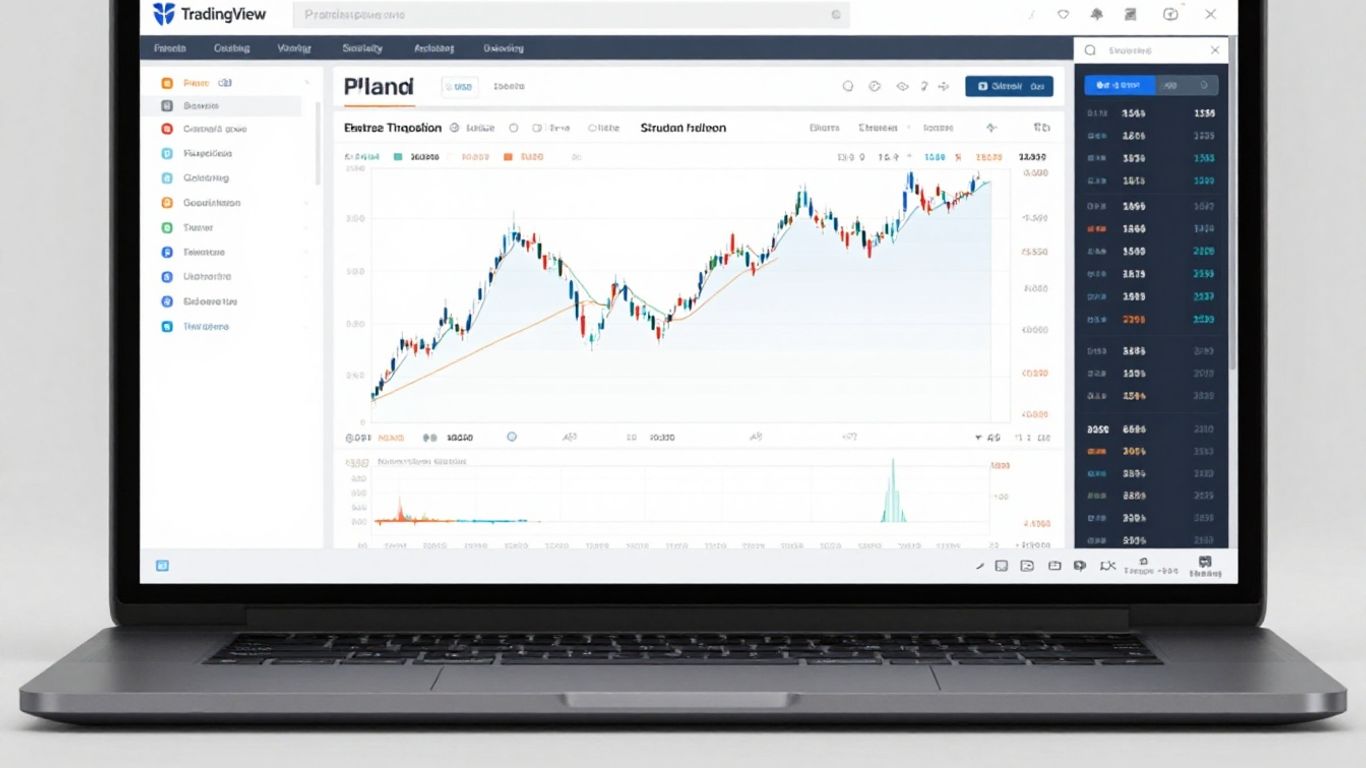
So, you’re ready to get TradingView onto your Windows 10 64-bit machine. It’s pretty straightforward, and you’ve got a couple of main ways to go about it. The most direct route is usually the best, and thankfully, TradingView makes it easy.
Direct Download from TradingView Website
This is the way to go for most people. You’ll want to head straight to the official TradingView website. Look for a download section or a specific link for the desktop application. Clicking the official download link will start the process of getting the installer file onto your computer. It’s usually a small file that won’t take too long to download, depending on your internet speed, of course. Once it’s done, you’ll find it in your usual downloads folder, ready to be installed.
- Navigate to the official TradingView website.
- Find the download link for the desktop application.
- Save the installer file to your computer.
Make sure you’re downloading from the official source to avoid any unwanted software or security risks. It’s always better to be safe than sorry when it comes to downloading applications.
Microsoft Store Availability
Sometimes, applications are also available through the Microsoft Store. While the direct download is generally the most common method for TradingView, it’s worth checking the Microsoft Store on your Windows 10 PC. If it’s listed there, you can install it directly through the store, which can sometimes handle updates automatically. It’s a different path, but it gets you the same result: the TradingView desktop app on your PC.
Installation Process Overview for TradingView
So, you’ve got the installer file ready to go. Now what? Getting TradingView onto your Windows 10 PC is usually a pretty simple process. Think of it like setting up any other program you’d install on your computer. The whole thing shouldn’t take too long, maybe just a few minutes if your computer is running smoothly.
Locate the Installer
First things first, you need to find that installer file you downloaded. If you didn’t change the default settings, it’s probably sitting in your "Downloads" folder. Just give that folder a quick look. If you downloaded it from the Microsoft Store, you can actually skip this step and go straight to running the application.
Run the Installer
Once you’ve found the installer file (it’ll likely have a name like "TradingView-Setup.exe" or something similar), just double-click on it. Your computer might pop up a little security window asking if you’re sure you want to let the app make changes. Go ahead and click "Yes" to allow it to proceed.
Follow the Prompts
An installation wizard will pop up and guide you through the rest. It’s mostly just clicking "Next" a few times. You’ll probably see a screen asking you to agree to the terms and conditions – make sure you read them, or at least skim them, before clicking the box to accept. You might also get a chance to pick where on your computer TradingView gets installed. The default location is usually fine for most people, so unless you have a specific reason to change it, just stick with that.
This part is pretty standard for most software installations. Just pay attention to what’s on the screen, and you’ll get through it without any issues. It’s not rocket science, just follow the steps.
Launch TradingView
After the installer finishes its job, you’ll usually see an option to launch TradingView right away. If you check that box, the application should open up automatically. If not, you can find a new shortcut on your desktop or in your Start menu. The first time you open it, you’ll need to log in with your TradingView account details. And just like that, you’re ready to start charting!
- Double-click the downloaded
.exefile. - Click "Yes" on the User Account Control prompt.
- Click "Next" through the setup wizard, accepting terms and conditions.
- Choose an installation location (default is usually fine).
- Wait for the installation to complete.
- Launch TradingView from the desktop shortcut or Start menu.
If you run into any snags during this process, don’t worry. There are usually simple fixes, and the TradingView support pages can help you out.
Key Features of TradingView Desktop on Windows
So, you’ve got TradingView downloaded and installed on your Windows 10 PC. That’s great! Now let’s talk about why this desktop version is pretty sweet, especially compared to just using it in a web browser. It really makes a difference for how you trade.
Native Multi-Monitor Support
This is a big one if you’re serious about watching the markets. The desktop app lets you spread your charts and tools across multiple screens without a fuss. You know how sometimes in a browser, windows overlap, or you have to keep resizing things? That doesn’t really happen here. You can set up your whole trading station exactly how you like it, with different charts or data feeds on each monitor. It makes keeping an eye on everything so much easier.
Enhanced Performance and Speed
Let’s face it, nobody likes a slow program when money is on the line. The TradingView desktop app is built to be quick. It generally loads faster and feels more responsive than the browser version, especially when the markets are really active. This means less waiting around and more time actually looking at your charts and making decisions. It uses your computer’s resources a bit more directly, which helps it run smoother.
- Faster chart loading times.
- Less lag when lots of people are using it.
- Smoother overall operation.
Seamless User Experience
Having a dedicated app means everything is just… cleaner. You don’t have to worry about your TradingView charts getting lost behind a dozen other browser tabs. It’s all right there, ready to go with a single click. This focused approach helps you concentrate on what matters most: your trading. It feels more like a professional tool designed specifically for the job, rather than just another website open on your computer.
The desktop application provides a more integrated and streamlined way to interact with TradingView’s powerful charting and analysis tools. It’s designed to minimize distractions and maximize efficiency for active traders.
It really cuts down on the digital clutter. You can save your layouts and settings, so when you open the app, everything is exactly where you left it. It just makes the whole process of checking your trades and doing your analysis feel more organized and less chaotic.
Troubleshooting and Seeking Technical Support
So, you’ve followed all the steps, downloaded the installer, and tried to get TradingView up and running on your Windows 10 64-bit machine, but something’s not quite right? Don’t worry, it happens to the best of us. Let’s break down some common hiccups and how to get help.
Common Installation Issues
Sometimes, the installer just won’t play nice. Here are a few things that might be causing trouble:
- Corrupted Download: If the installer file didn’t download completely or got messed up along the way, it simply won’t work. Try downloading it again, and make sure your internet connection is stable during the download.
- Antivirus Interference: Your security software is there to protect you, but sometimes it can be a bit overzealous and flag legitimate software like the TradingView installer. Temporarily disabling your antivirus before you start the installation, and then re-enabling it afterward, can often solve this.
- Insufficient Disk Space: It sounds basic, but running out of room on your hard drive is a surprisingly common reason for installation failures. Make sure you have enough free space before you begin.
- Outdated Windows: Some installation errors, like the dreaded 0x80070490A, are often tied to older Windows versions. Checking for and installing the latest Windows updates can fix these kinds of problems.
- Version Conflicts: If you’re trying to upgrade from a very old version of TradingView Desktop to a newer one, you might run into issues because newer versions aren’t always backward compatible. In this case, you’ll need to uninstall the old version completely before installing the new one.
Sometimes, the simplest solution is the best one. Before diving into complex fixes, try restarting your computer. It’s amazing how often a simple reboot can clear up temporary glitches that were preventing the installation from completing.
Seeking Technical Support
If you’ve tried the common fixes and are still stuck, it’s time to reach out for more help. TradingView offers several avenues for support:
- Help Center: This is your first stop. TradingView has a pretty extensive knowledge base filled with articles and frequently asked questions that cover a wide range of issues. You might find the exact solution you need right there.
- Community Forums: Other users might have run into the same problem you’re facing. Checking out the community forums can sometimes lead to a quick fix shared by a fellow trader.
- Submit a Support Ticket: If you can’t find an answer in the Help Center or forums, submitting a support ticket is the next step. Be as detailed as possible when describing your issue. Include screenshots of any error messages, your operating system version, and the steps you’ve already taken to try and resolve the problem. The more information you provide, the faster the support team can assist you.
Remember to be patient when waiting for a response. Support teams are often busy, but providing clear, detailed information will help them help you more efficiently.
Wrapping Up
So, that’s pretty much it. Getting TradingView set up on your Windows 10 64-bit computer is actually a pretty simple process. Just follow the steps we went over, and you’ll have the desktop app running in no time. It really does make things a bit cleaner than juggling browser tabs when you’re trying to keep an eye on the markets. Give it a try and see if it makes your trading setup feel a little smoother.
Frequently Asked Questions
What exactly is the TradingView Desktop app?
TradingView Desktop is a special computer program that lets you use all of TradingView’s great tools right on your Windows computer. It’s like having a super-powered version of the website, made just for your computer, so you don’t have to keep it open in a web browser.
Why should I use the desktop app instead of the website?
The desktop app often runs faster and smoother than the website version, especially when you’re looking at complex charts. It also gives you better support for using multiple computer screens and can provide notifications without needing a browser open.
What computer specs do I need to run TradingView Desktop?
You’ll need a computer running Windows 10 (version 22H2 or newer) or Windows 11 (version 22H2 or newer). It also requires a 64-bit Intel or AMD processor. Make sure you have the ‘App Installer’ program too, which usually comes with Windows.
How do I get the TradingView download for my PC?
The easiest way is to go directly to the TradingView website and find the download link for Windows. You might also be able to find and download it from the Microsoft Store on your computer.
Can TradingView Desktop handle multiple monitors well?
Yes, it’s really good with multiple screens! You can arrange your charts and tools across all your monitors exactly how you want them, and the app remembers your setup for next time.
What if I run into problems installing or using the app?
First, double-check that your computer meets all the system requirements. You can also look for answers on TradingView’s support pages or their community forums. If you’re still stuck, you can contact their customer support team for help.