Ever wanted to see your stocks without hunting through apps? A stock market widget android puts your portfolio right on your home screen, with live updates and a look you pick. In this post, I’ll show you how to pick the best widget, tweak its style, set up alerts, link your brokerage, and add extra tools—all while keeping your battery in check. Let’s get started.
Key Takeaways
- Pick a stock market widget android with solid data, fast updates, and broad exchange coverage
- Customize your home screen look by resizing widgets, choosing colors, setting transparency, and picking fonts
- Set up alerts for price thresholds, market news, and quiet hours to stay informed without the noise
- Link your broker, import or export portfolio files, and manage multiple accounts or watchlists in one place
- Add charts, scrollable lists, and shortcuts, plus use caching and offline support to save battery and boost speed
Selecting The Best Stock Market Widget Android For Your Portfolio

Choosing the right stock market widget for your Android device can feel overwhelming. There are so many options! It really boils down to what you need and what you value most in a widget. Some people want the flashiest charts, while others just want simple, reliable data. Let’s break down the key things to consider.
Assessing Data Accuracy And Reliability
The accuracy of the data is paramount. After all, what good is a widget if it’s showing you incorrect stock prices? You need to be able to trust the information it’s displaying. Look for widgets that source their data from reputable providers like Google Finance or established financial data APIs. Read reviews and see what other users are saying about the widget’s accuracy. If you see a lot of complaints about delayed or incorrect data, that’s a major red flag.
- Check the source of the data.
- Read user reviews regarding accuracy.
- Compare the widget’s data with other sources.
Comparing Widget Update Intervals
How often does the widget refresh its data? This is a big one. Some widgets update in real-time (or close to it), while others might only update every 15 minutes, or even less frequently. If you’re an active day trader, you’ll definitely want a widget with very frequent updates. But if you’re a long-term investor, a slightly slower update interval might be perfectly fine, and it could even save you some battery life. Many widgets let you customize the update interval, which is a nice feature to have.
Evaluating Exchange Coverage
Does the widget support the exchanges and markets you’re interested in? This is another crucial question. If you primarily invest in US stocks, most widgets will be fine. But if you also invest in international markets, or in more obscure exchanges, you’ll need to make sure the widget supports those. Check the widget’s documentation or description to see which exchanges are covered. Some widgets also offer crypto tracking, which is great if you’re into that.
It’s important to remember that no widget is perfect. There will always be trade-offs between features, accuracy, update frequency, and battery life. The best widget for you is the one that best meets your individual needs and priorities. Take some time to experiment with different options and see what works best for you.
How To Customize Stock Market Widget Android Appearance
Customizing your stock market widget on Android is a great way to make it fit your personal style and information needs. It’s not just about looks; it’s about making the data accessible and easy to understand at a glance. Let’s explore how you can tweak the appearance of your stocks widget to get the most out of it.
Resizing And Layout Options
Most stock market widgets are resizable, which means you can adjust their dimensions to fit your homescreen layout. This is super useful for prioritizing the information you want to see first. A larger widget can display more details, like intraday charts or news headlines, while a smaller widget keeps things simple with just the stock ticker and price. Experiment with different sizes to find the perfect balance between information density and screen real estate. Some widgets also offer different layout options, such as a list view or a grid view, allowing you to organize your stocks in a way that makes sense to you.
Color Themes And Transparency
Personalize your widget by choosing color themes that match your phone’s overall aesthetic. Many widgets offer a selection of pre-set themes, from light to dark, or even allow you to create your own custom theme. Transparency is another cool feature that lets you blend the widget with your background, creating a seamless look. A transparent widget can be especially useful if you have a visually busy wallpaper. Here’s a quick look at some common color customization options:
| Option | Description |
|---|---|
| Light Theme | Uses bright colors, easy to read in daylight. |
| Dark Theme | Uses dark colors, reduces eye strain in low-light conditions. |
| Custom Theme | Allows you to pick your own colors for the background, text, and accents. |
| Transparency | Adjusts the opacity of the widget, blending it with the background. |
Font And Data Display Settings
Readability is key when it comes to stock market data. Customize the font size and style to make sure the numbers and text are easy to read, even on a small screen. You can also choose which data points to display, such as the current price, percentage change, market capitalization, or volume. Some widgets even let you reorder the data fields to prioritize the information that’s most important to you. This level of customization ensures that you can quickly and easily understand the stock price quotes without having to squint or search for the right information.
Customizing your stock market widget is more than just making it look pretty. It’s about creating a tool that works for you, providing the information you need in a way that’s easy to understand and access. Take the time to explore the different customization options and find the settings that best suit your needs and preferences.
Setting Up Real-Time Alerts On Your Stock Market Widget Android
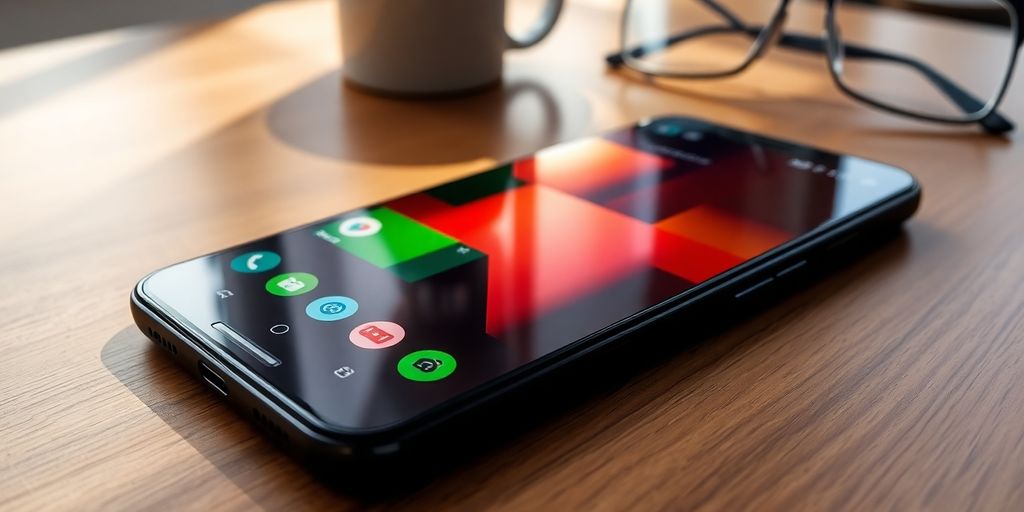
Having a stock market widget on your Android device is great, but it’s even better when it can proactively notify you of important changes. Setting up real-time alerts allows you to stay informed without constantly checking the widget. Let’s explore how to configure these alerts.
Price Threshold Notifications
Price threshold notifications are probably the most common type of alert. They let you know when a stock hits a specific price point, either above or below a level you set. This is super useful for knowing when to buy or sell.
Here’s how you might set it up:
- Open your stock market widget’s settings.
- Find the "Alerts" or "Notifications" section.
- Select the stock you want to monitor.
- Set the upper and/or lower price thresholds.
- Save your settings.
Some widgets also let you customize the type of notification you receive (e.g., sound, vibration, pop-up).
News And Market Event Alerts
Beyond just price movements, staying on top of relevant news and market events is also important. Some widgets offer alerts for things like earnings reports, analyst ratings changes, or major economic announcements that could impact your investments. Keeping tabs on the marketplace and news resources that affect it is essential for those looking to take active wealth-building measures.
Here’s an example of the kind of news alerts you might want:
- Earnings announcements
- Major company news (e.g., mergers, acquisitions)
- Economic data releases (e.g., inflation reports)
- Analyst rating changes
Snooze And Quiet Hours Configuration
Getting bombarded with alerts all day and night can be annoying. That’s why it’s important to configure snooze options and quiet hours. Snooze lets you temporarily disable alerts for a set period, while quiet hours let you specify times when you don’t want to receive any notifications at all. This is especially useful during non-trading hours or when you need to focus on other things.
Setting up quiet hours is a game-changer. I used to get woken up by pre-market news alerts, but now I have my widget set to only notify me during trading hours. It’s made a huge difference in my sleep quality.
Integrating Brokerage And Watchlist Features In Stock Market Widget Android
It’s super convenient when your stock market widget can actually talk to your brokerage account. No more manually entering every trade! Let’s look at how to get your widget connected and working smoothly.
Linking Brokerage Accounts
The ability to directly link your brokerage account to your stock market widget is a game-changer. It saves you a ton of time and reduces the risk of errors. Here’s what you should consider:
- Security: Make sure the widget uses secure authentication methods (like OAuth) to access your brokerage account. You don’t want to give your login credentials directly to the widget.
- Supported Brokers: Check if the widget supports your specific brokerage. Popular brokers are usually supported, but it’s always good to confirm.
- Permissions: Understand what permissions the widget needs. It should only require read-only access to your portfolio data, not the ability to make trades.
Importing And Exporting Portfolio Data
Even if direct brokerage linking isn’t available, importing and exporting portfolio data is a solid alternative. This lets you keep your widget updated without manual entry. You can easily track thousands of stocks with this feature.
- File Formats: Look for widgets that support common file formats like CSV or TXT. This makes it easier to transfer data from your brokerage or other portfolio trackers.
- Data Mapping: The widget should allow you to map the columns in your import file to the correct fields (symbol, quantity, price, etc.).
- Scheduled Imports: Some widgets let you schedule automatic imports from a cloud storage service (like Dropbox or Google Drive). This keeps your data fresh without any effort.
Having the ability to import and export data is a lifesaver if you switch brokers or want to try out a new widget. It prevents you from having to start from scratch every time.
Multi-Account Widget Management
If you have multiple brokerage accounts (retirement, taxable, etc.), you’ll want a widget that can handle them all. Managing multiple accounts within a single widget provides a consolidated view of your investments.
- Account Grouping: The widget should allow you to group your accounts for easy viewing. For example, you might want to see your total portfolio value across all accounts.
- Individual Account Views: You should also be able to drill down and see the details of each individual account.
- Currency Conversion: If you have accounts in different currencies, the widget should automatically convert them to your preferred currency for accurate portfolio tracking.
Enhancing Homescreen Efficiency With Advanced Stock Market Widget Android Tools
Let’s face it, constantly opening apps to check your portfolio is a drag. That’s where advanced stock market widgets come in. They’re designed to make your homescreen a powerhouse of information, saving you time and keeping you informed at a glance. These tools go beyond basic price displays, offering interactive features and visual aids to streamline your investment tracking.
Graph And Chart Embedding
Imagine having mini-charts right on your homescreen. No more tapping and waiting for an app to load! These widgets let you embed graphs directly, showing you price trends over various periods. It’s a quick way to assess performance without the hassle. For example, you could have a widget showing a one-day, one-week, or one-month chart for your top holdings. This is a great way to keep an eye on your portfolio’s performance without needing to open a separate app.
Scrollable Watchlist Tiles
Got a lot of stocks you’re watching? A scrollable watchlist tile is your friend. Instead of cluttering your screen with individual widgets, you can have one widget that displays a list of stocks, which you can scroll through. This keeps things tidy and efficient. Plus, many of these widgets let you customize the data displayed for each stock, such as price, change percentage, and volume. This is especially useful if you’re tracking global market indexes.
Widget Interaction Shortcuts
Some widgets offer shortcuts for quick actions. Maybe a tap on the widget opens the stock in your brokerage app, or a long press brings up a news feed. These shortcuts save you even more time and effort. Think of it as having mini-apps right on your homescreen. It’s all about making the information accessible and actionable with minimal effort.
Using these advanced tools can significantly improve your workflow. By having key data and shortcuts readily available, you can react faster to market changes and make more informed decisions. It’s about turning your homescreen into a personalized investment dashboard.
Optimizing Performance And Battery With Stock Market Widget Android
Let’s be real, nobody wants a stock market widget that drains their battery faster than a meme stock crashes. It’s all about finding that sweet spot between getting the data you need and keeping your phone alive. Here’s how to make your stock market widget play nice with your battery.
Refresh Frequency Trade-Offs
How often does your widget really need to update? Constantly pinging the servers for the latest prices can be a huge battery hog. Consider adjusting the refresh rate to something less frequent. For example:
- Real-time (every few seconds): Best for day traders glued to every tick.
- Every minute: A good balance for active traders.
- Every 5-15 minutes: Suitable for long-term investors who just want a general overview.
- Manual refresh: Only updates when you tell it to – great for saving battery.
Think about when you actually need the data. If you’re not actively trading outside of market hours, there’s no point in having the widget constantly refreshing.
Background Data Usage Controls
Many Android phones let you restrict background data usage for individual apps. This can be a lifesaver for battery life. Here’s what to consider:
- Restrict background data: This prevents the widget from updating when you’re not actively using your phone or connected to Wi-Fi.
- Wi-Fi only updates: Configure the widget to only refresh when you’re on a Wi-Fi network.
- Monitor data usage: Keep an eye on how much data the widget is using in your phone’s settings. If it’s excessive, it’s time to make some changes.
It’s worth noting that some widgets are better optimized than others. If you’re having battery issues, try switching to a different widget with more efficient data handling.
Caching Strategies And Offline Support
A well-designed widget should cache data to minimize the need for constant updates. This means storing the latest stock prices locally and only fetching new data when necessary. Look for widgets that:
- Offer offline viewing of previously loaded data.
- Use efficient caching algorithms to minimize storage space and battery drain.
- Allow you to clear the cache manually to free up space.
By implementing these strategies, you can enjoy the convenience of a stock market widget without sacrificing your phone’s battery life. It’s all about finding the right balance for your needs.
Unlocking Premium Features In Stock Market Widget Android Apps
Let’s be real, free apps are great, but sometimes you need that extra oomph. That’s where premium features come in. Upgrading your stock market widget app can give you access to tools and data that can seriously improve your investment game. It’s like going from riding a bike to driving a sports car – both get you there, but one is way faster and has more bells and whistles.
Market Insights And Analytical Charts
One of the biggest draws of premium stock market widgets is access to advanced market insights. We’re talking detailed analytical charts that go way beyond the basic candlestick patterns. Think about it: you could have:
- In-depth technical analysis: Moving averages, RSI, MACD – all at your fingertips.
- Historical data: See how a stock performed over years, not just days.
- Earnings forecasts: Get analyst estimates and see how they’ve changed over time.
Having this kind of information readily available on your homescreen can make a huge difference in your decision-making. It’s about being informed, not just reacting to the latest headlines.
Priority Data Feeds And After-Hours Updates
In the stock market, speed is key. Premium widgets often offer priority data feeds, meaning you get real-time updates faster than free users. This can be especially important during volatile market conditions. Plus, some premium apps provide after-hours updates, letting you track price movements even when the market is officially closed. This is super useful if you want to react quickly to overnight news or global events. Imagine being able to see how your stocks are doing even after the closing bell – that’s power!
Custom Widget Templates And Layout Presets
Tired of the same old boring widget layout? Premium apps often let you customize your widget’s appearance with different templates and layout presets. You can choose exactly what data to display, how it’s organized, and even the overall look and feel. This means you can create a stock market widget that perfectly matches your personal style and investment strategy. It’s all about making your homescreen work for you, not the other way around.
Here’s a quick example of how customization might look:
| Feature | Free Version | Premium Version |
|---|---|---|
| Layout Options | Limited | Extensive |
| Color Themes | Basic | Advanced |
| Data Display | Standard | Customizable |
## Conclusion
Wrapping it up, customizing a stock widget on Android turns a cluttered screen into a live feed you actually want to look at. You pick the size and color, then add the symbols you care about most. It might take a few taps to set the refresh rate and theme, but once it’s running you’ll skip opening apps. Now every glance at your home screen shows your latest gains or losses. Give it a try this week—you might find yourself checking your portfolio more than before. Let your widget do the heavy lifting, so you can get back to living your life.
Frequently Asked Questions
How do I choose the right stock market widget for my Android phone?
Look for a widget that shows accurate prices, updates often, and covers the exchanges you need. Try a free version first to make sure it works well on your device.
Can I change the size and look of my stock widget?
Yes. Most widgets let you resize them, pick colors, and adjust transparency. You can also change fonts and decide which data to show.
How often will the widget refresh stock prices?
You can pick update intervals from every few seconds to once an hour. Faster updates give more real-time info but may use more data and battery.
Will the stock widget use up a lot of battery?
It depends on how often you set it to refresh. Slower update times save battery, and many widgets let you pause updates at night or set quiet hours.
Is it safe to link my brokerage account to a widget?
Most top widgets use secure connections and read-only access. They can show your balance and trades but can’t move money or make trades for you.
What extra features do I get with a paid widget app?
Premium versions often include detailed charts, quick news alerts, priority data feeds after hours, and custom widget templates you can save and reuse.