

To recover QuickBooks data from a backup file, use the Open and Restore Company feature or Auto Data Recovery (ADR). Before starting, make sure you’ve permission to access the folder in which your backup file is located. Also, check that your backup file is more than 6MB and it’s readable. If the backup file is corrupted, then use a professional QuickBooks repair tool to restore the company file.
Why Restoring data from a QuickBooks backup file is necessary
QBW file corruption often forces QuickBooks users to restore a backup. If the backup is available and compatible with the current version, data can be easily recovered. Here, let’s learn how to restore QuickBooks data from backup.
Methods to Restore data from a Backup file in 2026
In QuickBooks, you can use the following methods to restore the QB data from backup file:
Method1-Use Open or Restore Company feature:
To use this feature, follow the steps below:
- First, check the location of the backup file. If it is stored on an external device then move it to your local hard drive.
- Now, open your QuickBooks application.
- Click the File menu and then click Open or Restore Company.
- Click Restore a backup copy and click the Next option.
- Click on the option labeled “Local Backup” and then click Next.
- Browse your system for your backup company file (with extension .qbb).
- Select a location where you want to save the restored company file and then click Open.
- Click Save.
Note:
Save the restored QBW file in a different folder than the original to avoid the ‘overwrite your data’ message. Rename the file if needed to prevent overwriting.
Method 2-Use Auto Data Recovery (ADR)
You can also use Auto Data Recovery (ADR) to recover QuickBooks data from backup. With this built-in tool, you can recover recent transactions using original .TLG file and .QBW.adr file. Here are the steps to do so:
- First, create a new folder on your system and give it a name, for instance QBTest.
- Then, go to the folder where your company file is saved.
- In your company file folder, search and right-click on the .tlg file, which has the same name as the company (QBW) file.
- Click on the Copy option to copy the .tlg file of your company file and then paste it into the new folder (QBTest) created earlier.
- Now, in the same company file folder, open the QuickBooksAutoDataRecovery folder.
- Find the .QBW.adr file in that folder and copy and paste it into the QBTest folder. The QBTest folder now contains two required files – .TLG and .QBW.adr.
- Right-click on the QBW.adr file, select Rename, and then delete the .adr extension.
- Next, use the company file saved in the new (QBTest) folder to open your QuickBooks.
- Then, check if all the transactions are recovered using your account register.
- Now, use the Verify Data tool to verify the data integrity of the recovered file. For this, go to File > Utilities > Verify Data.
- If the data in the company file is fine, then you can move the corrupted company (QBW) file to a different location and transfer the copy of the company file from the QBTest folder to the original location.
What to do If backup restore fails?
If QuickBooks data fails to restore from backup due to any issue try alternative repair methods to restore the file.
Alternative Repair/Restore methods to restore the QuickBooks Company file
Use QuickBooks File Doctor tool
If the backup file is not available, then you can try using the file doctor tool available in QuickBooks tool hub. It can help you repair QBW file.
Steps to use File Doctor Tool to Repair QBW File
- Download, install, and then open the QuickBooks Tool Hub.
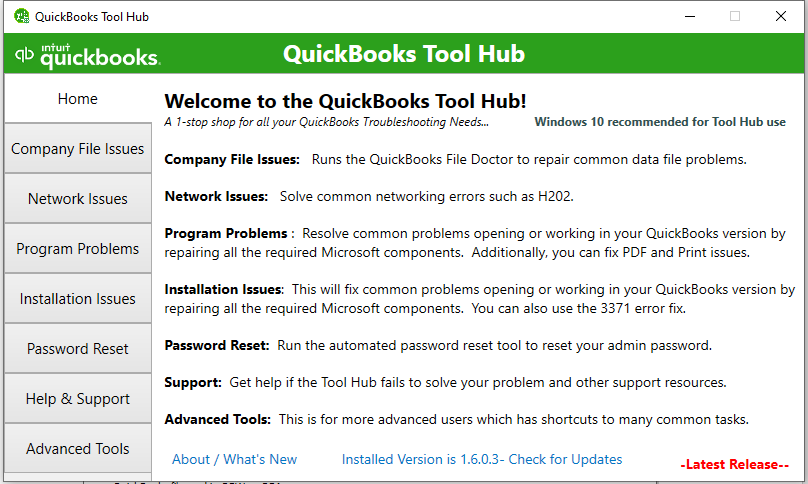
- On the tool hub, click Company File Issues under Home.
- Next, click Run QuickBooks File Doctor. It may take a few minutes to open.
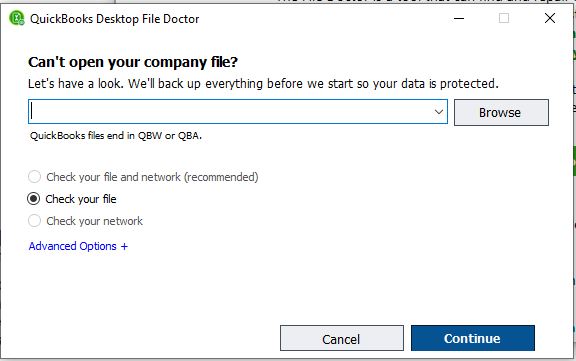
- Once it opens, click on the Browse option to search for the QuickBooks Desktop File.
- Under the search box, you will see the following three options:
- Check your file and network.
- Check your file.
- Check your network.
- Select the middle option – Check your file and then Continue.
- Enter the QuickBooks admin credentials and then click Next.
Now, the tool will start scanning and repairing the selected company file.
Limitations:
- To upload a company file to the tool, an internet connection is required.
- It may fail to respond if the company file is more than 2 GB
- You require admin credentials.
- It may fail to respond if the company file is highly corrupted.
Use a professional QuickBooks repair tool
You can use a professional QuickBooks recovery tool to repair and restore QuickBooks company file. It is the best solution in a case where you do not have a backup file or the Auto Data Recovery (ADR) tool, and the file is highly corrupted. It can repair QBW files with any level of corruption, irrespective of the size. It also allows you to preview the repaired company file data like payroll data, employees, before saving. Also, it supports all commonly used QuickBooks versions like Enterprise solutions, Premier, and Pro.
Conclusion
In this post, we have comprehended the methods to restore QuickBooks data from a backup file in 2026. For the certain cases where you fail to perform backup restore, we also discussed other ways to recover the QBW file without backup file. Using any reliable QuickBooks file recovery tool can help you quickly repair a damaged or corrupted company file. It even helps you recover data from the QuickBooks backup file with complete integrity.

Peyman Khosravani is a global blockchain and digital transformation expert with a passion for marketing, futuristic ideas, analytics insights, startup businesses, and effective communications. He has extensive experience in blockchain and DeFi projects and is committed to using technology to bring justice and fairness to society and promote freedom. Peyman has worked with international organizations to improve digital transformation strategies and data-gathering strategies that help identify customer touchpoints and sources of data that tell the story of what is happening. With his expertise in blockchain, digital transformation, marketing, analytics insights, startup businesses, and effective communications, Peyman is dedicated to helping businesses succeed in the digital age. He believes that technology can be used as a tool for positive change in the world.