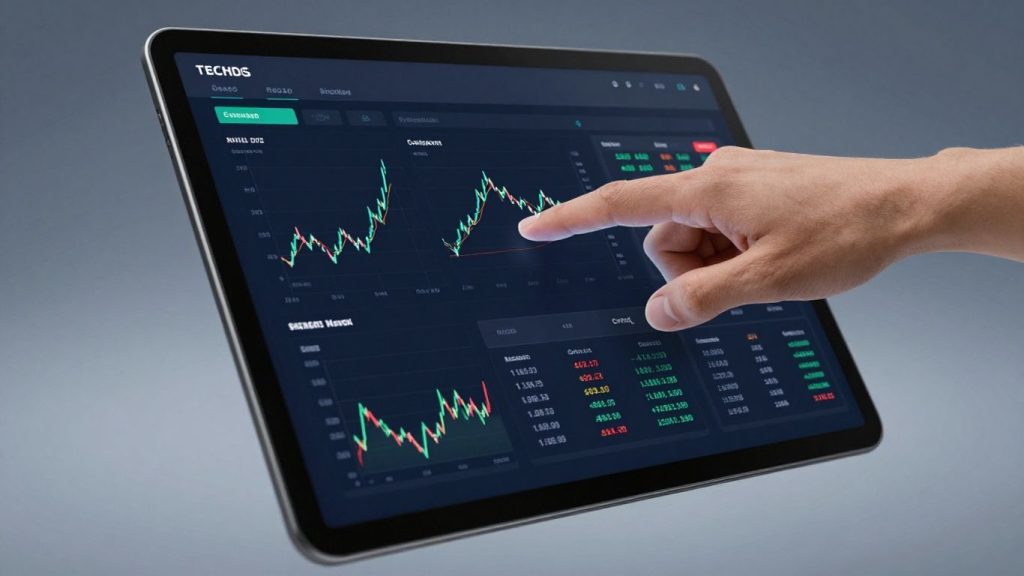
Thinking about trading stocks or options? You’ve probably heard about thinkorswim. It’s a powerful platform, and the web version makes it pretty accessible. Whether you’re just starting out or looking to get more serious, this guide will help you get comfortable with the thinkorswim web interface. We’ll cover everything from setting up your watch lists to practicing trades without using real money. So, let’s get started with the thinkorswim web platform.
Key Takeaways
- The thinkorswim web interface is designed to be user-friendly, offering tools for both new and experienced traders.
- You can create and customize watch lists to keep track of stocks you’re interested in, and use scanning tools to find potential investments.
- The platform allows you to place buy and sell orders for stocks and manage your open positions.
- thinkorswim web provides tools for trading options, including navigating option chains and executing various strategies.
- Practice trading with virtual money using the Paper Money mode to get familiar with the platform before risking real funds.
Getting Started With thinkorswim Web
So, you’ve decided to check out the thinkorswim Web platform. That’s a good move. It’s a pretty powerful tool, and getting the hang of it early on will make a big difference in how you trade. Thinkorswim has been around for a while, and while it might seem a bit much at first glance, it’s designed to give you a lot of control and information. This section is all about getting you comfortable with the basics so you can start exploring without feeling lost.
Understanding the thinkorswim Web Interface
The first thing you’ll see when you log in is the main interface. It’s laid out with different sections, or "gadgets," that show you market data, your account info, charts, and more. Don’t feel like you need to understand everything at once. Just take a moment to look around. You’ll see a menu bar at the top with different tabs like "Monitor," "Trade," "Analyze," and "Charts." Each of these takes you to a different set of tools.
- Monitor: This is where you’ll see your account summary, positions, and orders.
- Trade: This is where you’ll actually place buy and sell orders for stocks and options.
- Analyze: Here you can look at potential trades and analyze risk.
- Charts: This tab is dedicated to visualizing price movements and applying technical tools.
The platform is designed to be flexible. You can rearrange gadgets, add new ones, or remove ones you don’t use. Think of it like customizing your own dashboard for trading.
Navigating the Platform Layout
When you first open thinkorswim Web, you’ll notice it’s divided into sections. On the left, you might see a sidebar with news or watch lists. The main area usually shows charts or your trading tickets. On the right, you’ll find those main tabs we just talked about. The key is to get familiar with where things are located. You can resize these sections by clicking and dragging the borders between them. This helps you make the most of your screen space, especially if you’re trying to view charts and order entry at the same time. It’s all about making the platform work for how you want to trade. You can even customize the workspace to fit your preferences.
Accessing Educational Resources
Thinkorswim doesn’t just throw you in the deep end. They have a whole section dedicated to helping you learn. Look for the "Education" tab on the right-hand side. Here, you’ll find articles, videos, and tutorials that cover everything from basic trading concepts to advanced strategies. If you’re unsure about a specific feature or term, this is the first place you should look. They also have a "Help" section that can answer a lot of common questions. It’s a good idea to spend some time here, especially when you’re starting out, to build a solid foundation.
Mastering Your Watch Lists and Scans
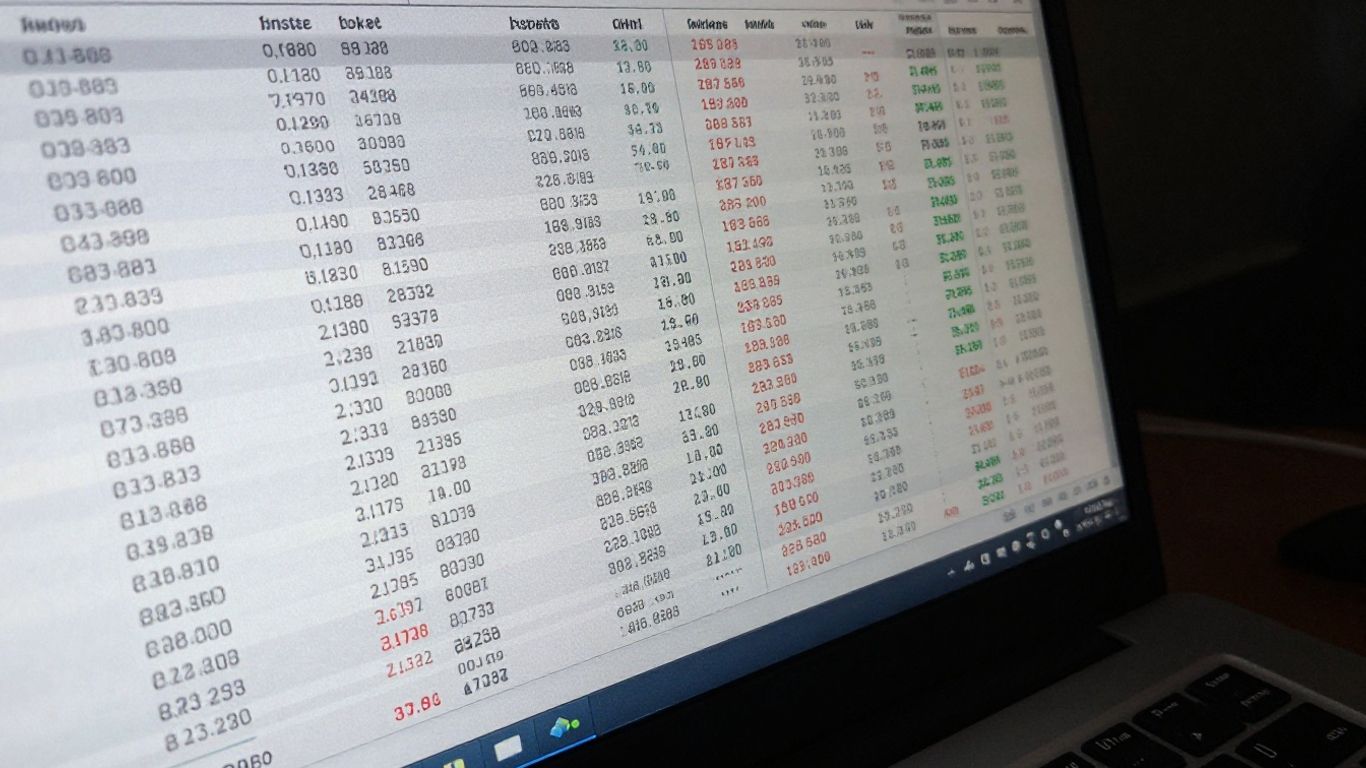
Alright, let’s talk about keeping tabs on the stocks you’re interested in. Thinkorswim Web has some pretty neat ways to do this, mainly through watch lists and scans. It’s not just about jotting down a few ticker symbols; you can really tailor these tools to fit how you trade.
Creating and Customizing Watch Lists
Think of a watch list as your personal stock ticker. You decide what goes in it. Need to keep an eye on tech companies? Make a "Tech Stocks" list. Watching energy companies? Create an "Energy Watch" list. It’s simple to start: just hit the plus button, give your list a name, and then start typing in the symbols. You can add companies like Apple (AAPL), Microsoft (MSFT), or whatever catches your eye.
- Add Symbols: Type in the ticker symbol directly.
- Rename Lists: Give your lists clear, descriptive names.
- Rearrange: Drag and drop symbols to put them in your preferred order.
- Multiple Lists: Create as many lists as you need for different sectors or strategies.
The real power comes when you start customizing the columns. You’re not stuck with just the symbol and price. You can add things like daily price change, volume, market cap, or even specific technical indicators. This way, you see the data that matters most to you at a glance, right there on your list.
Utilizing Scan Features for Stock Selection
Scans are where you can get a bit more proactive. Instead of just watching what you already know, scans help you find new opportunities based on specific criteria. Think of it like a search engine for stocks.
Want to find stocks that have gone up a lot today? Or maybe companies with a certain level of earnings per share? You can set these kinds of filters. It’s a great way to discover stocks that might be on the move or meet your investment profile without having to manually check hundreds of companies.
Here’s a basic idea of how it works:
- Choose a Scan Type: Are you looking for stocks based on price, volume, technical indicators, or fundamentals?
- Set Your Criteria: Define the parameters. For example, "Price greater than $50" or "Volume greater than 1,000,000 shares."
- Run the Scan: The platform will then show you a list of stocks that match your search.
You can use scans to filter for stocks that meet certain financial metrics, like a specific earnings per share range or a particular beta value. While these scans often focus on the numbers, they provide a solid starting point for finding stocks that might be worth a closer look.
Understanding Dynamic Watch List Updates
This is where things get really interesting. Your watch lists don’t have to be static. You can set them up to update automatically based on certain market conditions or criteria. For instance, you could have a watch list that always shows the top 10 gainers on the Nasdaq, or stocks that have crossed a specific moving average. This means your list is always showing you what’s currently happening in the market, rather than just a fixed list of tickers you put there days ago. It keeps you informed without you having to constantly refresh or manually update things. It’s like having a smart assistant keeping an eye on the market for you.
Essential Trading Functions on thinkorswim Web
Alright, let’s get down to the nitty-gritty of actually trading on thinkorswim Web. This is where you put your plans into action, whether you’re buying your first stock or managing a bunch of open trades. It’s not as complicated as it might seem at first glance, and the platform makes it pretty straightforward.
Placing Stock Buy and Sell Orders
So, you’ve found a stock you like and you’re ready to buy. Head over to the ‘Trade’ tab. You can type in the stock symbol you’re interested in. Right there, you’ll see the current price, how much it’s up or down for the day, and where it’s listed. If you want to know more, there’s a ‘Company Profile’ link that gives you a deeper look at what’s moving the stock.
To actually place an order, find the ‘Underlying’ section. You’ll see the ‘Ask’ price – that’s the price someone is willing to sell at. Click on that price. An order form will pop up at the bottom of your screen. Here’s where you tell the system what you want: how many shares you’re looking to buy, the price you’re willing to pay (or if you want to buy at the current market price), and what kind of order you want to use. Once you’ve filled that out, you’ll hit ‘Confirm and Send’. Always double-check your order details before you hit that final submit button. It’s easy to make a typo, and you don’t want to accidentally buy way more than you intended.
Managing Open Positions Effectively
Once you’ve made a trade, you’ll want to keep an eye on it. Your open positions will show up in the ‘Monitor’ tab. This is your command center for seeing how your investments are doing in real-time. You can see your profit or loss, the current market value, and other key details. If you need to adjust a position, like selling some shares or closing it out entirely, you can usually do that right from the ‘Monitor’ tab or by going back to the ‘Trade’ tab and selecting the position you want to manage. It’s all about keeping track and making informed decisions based on how the market is moving.
Understanding Order Types and Execution
When you place a trade, you have choices about how that order gets filled. This is super important. Here are a few common ones:
- Market Order: This is the simplest. You’re telling the system to buy or sell immediately at the best available price. It’s fast, but you might not get the exact price you were hoping for, especially in fast-moving markets.
- Limit Order: With this, you set a specific price. For a buy order, you set the maximum price you’re willing to pay. For a sell order, you set the minimum price you’re willing to accept. Your order will only fill if the stock reaches your specified price.
- Stop Order: This is often used to limit losses. A stop order to sell becomes a market order once the stock price falls to or below your stop price. A stop order to buy becomes a market order once the stock price rises to or above your stop price.
Trade executions on thinkorswim are generally quite quick. For market orders, the average fill time is incredibly fast, often measured in fractions of a second. This speed is important for active traders who need their orders processed without delay.
Knowing these order types helps you control your trades better and manage risk. You can find more details on setting up your platform for stock trading in this helpful tutorial.
Exploring Advanced Trading with Options

Alright, so you’ve gotten the hang of stocks, and now you’re curious about options. It’s like stepping up to a more complex level of the game, and thinkorswim Web has some pretty neat tools to help you out. Think of options as contracts that give you the right, but not the obligation, to buy or sell an underlying asset at a specific price before a certain date. It sounds complicated, but once you get into it, it makes sense.
Navigating Option Chains
When you’re looking at options, the first thing you’ll see is the option chain. This is basically a list of all available options for a particular stock. You’ll see calls on one side and puts on the other. You can pick your expiration date – when the contract runs out – and then look at the different strike prices. The strike price is that specific price at which you can buy or sell the stock.
- Calls: These give you the right to buy the stock.
- Puts: These give you the right to sell the stock.
- Expiration Date: The date the option contract expires.
- Strike Price: The price at which you can buy or sell the underlying stock.
It’s a lot of information, but the layout is pretty clear. You can see the bid and ask prices for each option, which helps you figure out what it might cost to get in.
Executing Basic and Complex Option Strategies
Thinkorswim Web makes it easier to put on option trades. For simple stuff, like buying a call or a put, you just select the option, enter how many contracts you want, and then decide on your order type. The platform lets you tailor your orders with specific parameters to fit your plan. But it doesn’t stop there. You can also build more involved strategies, like vertical spreads or covered calls, right within the platform. They even have pre-built strategies you can explore if you’re not sure where to start. It’s a good way to learn without having to manually piece together every single leg of a trade.
When you’re trading options, it’s really important to understand the potential risks and rewards. Unlike stocks, options have an expiration date, meaning they can expire worthless. This means you could lose your entire investment. Always make sure you know what you’re getting into before placing a trade.
Understanding Option Order Parameters
When you’re ready to place an option trade, you’ll need to fill out an order ticket. This is where you specify all the details. You’ll choose the number of contracts, the type of order (like a limit order to control your price), and the time in force (how long the order stays active). For more complex strategies, the order ticket will show you the net debit or credit for the entire strategy. It’s all about making sure the trade is exactly how you want it before you hit send. You can even see some helpful options statistics to get a feel for the market sentiment around a particular option. It’s a lot to take in, but taking it step-by-step makes it manageable.
Leveraging thinkorswim Web Charting Tools
Charts are where the rubber meets the road for many traders, and thinkorswim Web gives you a lot to work with. You can really dig into price action and see what’s happening.
Customizing Chart Views and Timeframes
First off, you can change how the chart looks. Think candlestick, bar, or line charts. The default is usually candlesticks, which show the open, high, low, and close prices for a period. You can also adjust the timeframe – think daily, weekly, monthly, or even intraday charts. This lets you see the big picture or zoom in on short-term moves. It’s all about finding the view that makes sense for your trading style. You can also change colors, backgrounds, and even add notes directly onto the chart.
Applying Technical Indicators and Studies
This is where things get interesting. Thinkorswim Web lets you add a bunch of technical indicators. These are tools that help you analyze price and volume data. Some popular ones include:
- Moving Averages: These smooth out price data to show trends.
- MACD (Moving Average Convergence Divergence): Helps identify momentum and trend changes.
- Bollinger Bands: Useful for seeing volatility and potential price reversals.
- Stochastic Oscillator: Measures momentum by comparing a closing price to a range of prices over a period.
You can add multiple indicators to the same chart, which can give you a more complete picture. Just remember, more isn’t always better; too many can get confusing.
Drawing Tools for Technical Analysis
Beyond indicators, you have drawing tools. These are great for marking up your charts. You can draw:
- Trendlines: To connect price points and visualize trends.
- Support and Resistance Levels: Horizontal lines to mark areas where prices tend to stop or reverse.
- Fibonacci Retracements: To identify potential support and resistance levels based on mathematical ratios.
- Shapes and Annotations: To highlight specific patterns or make notes about price action.
These visual aids can help you spot patterns, potential entry or exit points, and keep track of your analysis. It’s like having a whiteboard right on your trading screen.
The platform also allows you to set up your charts in a grid. This means you can have multiple charts open at once, each showing a different stock or a different timeframe for the same stock. It’s a neat way to keep an eye on several things simultaneously without having to switch back and forth constantly. You can even save these grid layouts for later use.
Practicing Without Risk: Paper Trading
Before you start putting your actual money on the line, it’s a really good idea to get a feel for how thinkorswim Web works. That’s where paper trading comes in. It’s basically a simulator that lets you practice trading with fake money but with real market prices. This way, you can learn the ropes without any financial stress.
Switching to Paper Money Mode
Getting into paper trading mode is pretty straightforward. When you log into thinkorswim Web, you’ll see an option to switch from your live account to ‘Paper Money’. Just click on that, and you’re in! It’s like stepping into a practice arena. You get a virtual balance, usually a nice round number like $100,000, to play with. This lets you try out different trades and see how they might play out in the real market.
Simulating Trades with Virtual Funds
Once you’re in Paper Money mode, you can do pretty much everything you can do with a live account. You can set up watch lists, scan for stocks, look at charts, and, of course, place trades. The goal here is to get comfortable with the platform’s tools and to test your trading ideas. For example, you might want to see how a particular stock behaves after an earnings report, or how a certain options strategy performs. You can place buy and sell orders, experiment with different order types, and watch how your virtual portfolio changes. It’s a safe space to make mistakes and learn from them.
Resetting Balances and Practice Accounts
One of the best parts about paper trading is that you can reset your account whenever you want. If you’ve made a mess of your virtual portfolio or just want to start fresh with a new strategy, you can easily reset your balance back to the starting amount. This is super helpful for trying out new things without worrying about messing up a previous practice run. You can find options to manage your paper trading account, including resetting your balance, within the account information section of the platform. It’s all about giving you the freedom to practice as much as you need. You can explore the paperMoney feature to get a better grasp of simulated trading.
Paper trading is not just for absolute beginners. Even experienced traders use it to test new strategies or get familiar with a new platform before committing real capital. It’s a smart way to manage risk and build confidence.
Wrapping It Up
So, that’s a look at getting started with the thinkorswim web platform. It’s got a lot of tools, and honestly, you could spend ages exploring everything it can do. But hopefully, this guide has given you a solid foundation. Remember to use the paper trading feature to get comfortable before you start putting real money on the line. Keep practicing, keep learning, and you’ll get the hang of it. Happy trading!
Frequently Asked Questions
What is thinkorswim Web?
Thinkorswim Web is a version of the thinkorswim trading platform that you can use right in your web browser, without needing to download any software. It’s packed with tools to help you watch stocks, analyze charts, and practice trading.
How do I practice trading without losing real money?
You can use the ‘Paper Money’ mode. It’s like a practice game where you get fake money to make trades. This lets you try out different strategies and learn the platform without any risk to your actual cash.
How can I keep track of stocks I’m interested in?
You can create ‘Watch Lists’. Think of them as your personal lists where you can add the stock symbols of companies you want to follow. You can even customize these lists to show the information that matters most to you.
Can I use thinkorswim Web to trade options?
Yes, absolutely! Thinkorswim Web has tools to help you look at option chains, understand different option strategies, and place option trades. It’s a great way to explore the world of options trading.
What kind of charting tools are available?
Thinkorswim Web offers powerful charting tools. You can change how the charts look, add different indicators to spot trends, and even draw lines or shapes on the charts to mark important price levels or patterns.
Where can I find help or learn more about thinkorswim Web?
The platform has an ‘Education’ section with lots of guides and tutorials. You can also find many helpful videos online, especially on YouTube, that explain how to use different features.