
Thinking about trading stocks or options? The Schwab trading platform, specifically thinkorswim, can seem a bit much at first. It’s packed with tools and features, which is great, but it can also be a little overwhelming. This guide is here to break it all down, making it easier for you to get comfortable and start trading. We’ll cover everything from setting up your account to using the more advanced features, so you can feel more confident using the Schwab trading platform.
Key Takeaways
- The thinkorswim desktop interface is your main hub for trading and analysis on the Schwab trading platform. Getting familiar with its layout is the first step.
- You can really make thinkorswim your own by changing how it looks, setting up watchlists for stocks you care about, and organizing your market views.
- Trading stocks is straightforward once you know how to set up the platform for it, place orders, and use the tools for checking out stocks.
- Options trading has its own set of tools within thinkorswim, like the options chain, to help you trade calls and puts.
- Don’t forget about the mobile app for trading on the go, and remember that Schwab offers plenty of help and learning materials if you get stuck.
Getting Started With The Schwab Trading Platform
So, you’ve decided to get serious about trading and you’re looking at the Schwab trading platform, specifically thinkorswim®. That’s a smart move. It’s a pretty powerful tool, and honestly, it can feel a little overwhelming at first. But don’t worry, we’ll break it down.
thinkorswim® Overview
Thinkorswim is essentially Schwab’s go-to platform for active traders. It’s packed with features for everything from basic stock trades to complex options strategies. You can analyze charts, scan for opportunities, and even practice with virtual money before you put your real cash on the line. It’s available as a desktop application, a web version, and a mobile app, so you can trade from pretty much anywhere. The desktop version is where most people start because it has the most features readily available.
Navigating the thinkorswim® Desktop Interface
When you first open the desktop platform, you’ll see a lot going on. Don’t panic. The interface is divided into different sections, or ‘tabs’, that help organize everything. You’ve got your main trading areas like Trade, Analyze, Scan, and Monitor. Each tab has its own set of tools and information. For example, the Monitor tab is where you’ll see your account balances and positions, while the Scan tab lets you search for specific stocks based on criteria you set. It takes a little time to get used to where everything is, but it’s designed to put a lot of information at your fingertips.
Here’s a quick look at some key areas:
- Login/Account Access: How you get into the platform.
- Main Menu Bar: Usually at the top, with access to different modules.
- Workspace Tabs: Like Trade, Analyze, Scan, Monitor, etc.
- Gadgets: Smaller tools you can add to your workspace.
Setting Up Your Schwab Account
Before you can really dive in, you need a Schwab account. If you don’t have one, you can open one directly through the thinkorswim platform or on the Schwab website. Once your account is open and funded, you’ll use your Schwab login credentials to access thinkorswim. There might be a few disclosures to accept when you first log in. You can also set up practice accounts, often called paper trading accounts, which is a great way to get familiar with the platform without any financial risk. You can find more information on how to get started with paper trading on the Schwab website.
Getting comfortable with the basic layout and how to log in is the first real step. Don’t feel like you need to master every button on day one. Focus on finding your account summary and the main trading screen first.
Customizing Your thinkorswim® Experience

Alright, so you’ve got the Schwab trading platform, specifically thinkorswim, fired up. Now, let’s make it feel like yours. Nobody likes a cluttered or confusing workspace, right? This section is all about tweaking things so you can find what you need, when you need it, without a headache.
Tailoring Appearance Settings
First off, the look and feel. You can change colors, fonts, and even how things are laid out. This isn’t just about making it pretty; it can actually help with readability, especially if you’re staring at charts for hours. Think about what colors are easiest on your eyes. Some people like dark modes, others prefer bright. You can adjust font sizes too, which is a lifesaver if you’ve got older eyes or just want things a bit bigger.
- Color Schemes: Pick from pre-set themes or create your own. This affects everything from the background to the lines on your charts.
- Font Adjustments: Make text larger or smaller across the platform.
- Layout Options: While not strictly appearance, how you arrange windows impacts your visual experience.
Making these small changes can really cut down on eye strain and help you focus on the actual trading decisions, not just trying to read the screen.
Creating and Managing Watchlists
Watchlists are super handy. They’re basically custom lists of stocks or other securities you want to keep an eye on. You can have different watchlists for different purposes – maybe one for your main holdings, another for stocks you’re researching, or even one for a specific sector.
Here’s a quick rundown on how to get them set up:
- Find the ‘Watchlist’ tab. It’s usually pretty obvious.
- Look for an option to ‘Create New Watchlist’.
- Give your new list a name (like ‘Tech Stocks’ or ‘Dividend Plays’).
- Start adding symbols. You can type in the ticker symbol or the company name.
- Hit ‘Done’ when you’re finished adding.
Remember, any watchlist you build on the desktop version will show up on your mobile app too, which is pretty neat for staying connected.
Personalizing Market Views
This is where you can really get specific about what market information you see. Instead of just a generic list of stocks, you can set up columns in your watchlists or other windows to show exactly the data points you care about. Maybe you want to see the 52-week high/low, the dividend yield, or a specific technical indicator right there in your list.
- Column Selection: Right-click on the column headers in a watchlist or similar window. You’ll see a huge list of available data points you can add.
- Column Order: Drag and drop the column headers to arrange them in the order that makes the most sense for your workflow.
- Saving Views: Once you’ve got a view set up just how you like it, you can often save it so you don’t have to reconfigure it every time.
The goal here is to have the most relevant information front and center, reducing the need to click around to find basic stats. It’s about building a dashboard that works for you, not against you.
Trading Stocks On thinkorswim®
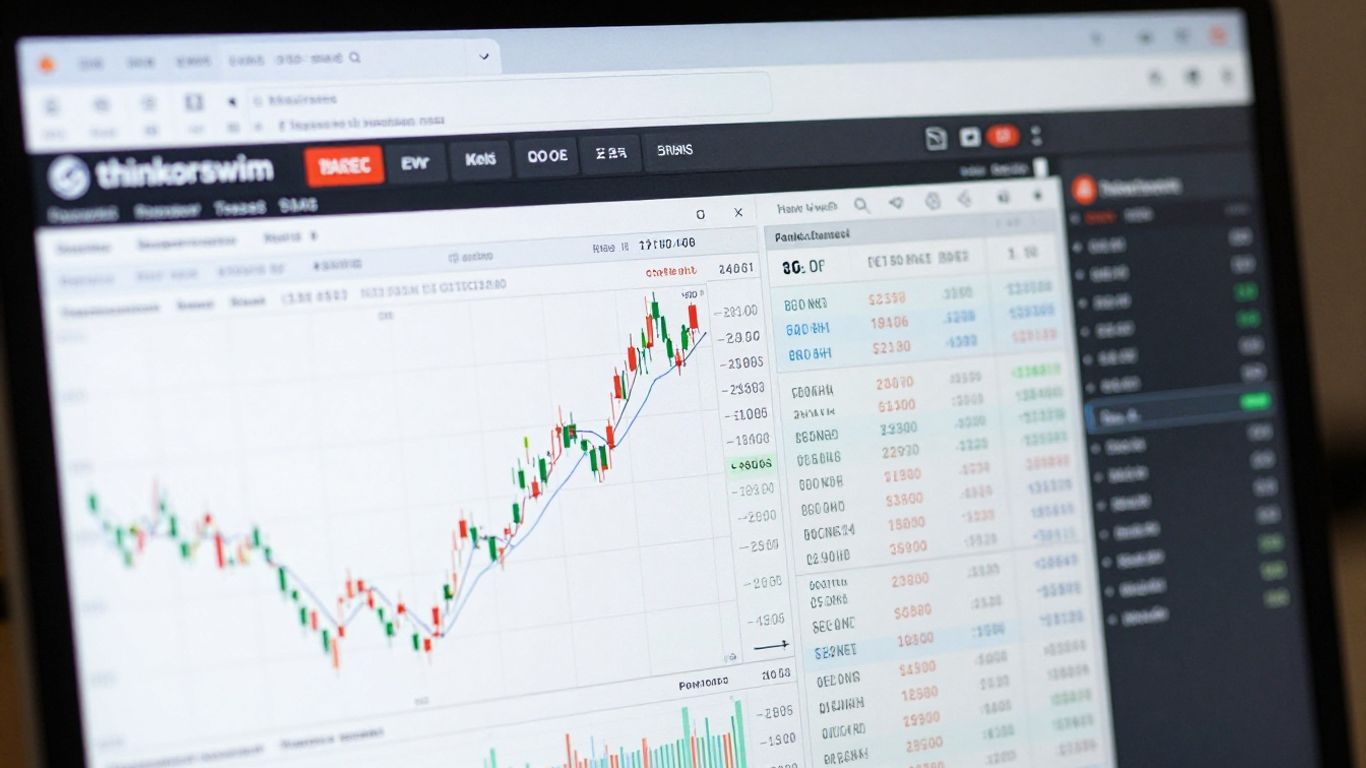
Ready to get your hands dirty with actual stock trading on thinkorswim®? It’s not as complicated as it might seem at first. The platform is built to make things pretty straightforward, even if you’re just starting out. We’ll cover how to get your setup just right for stocks, how to actually place those buy and sell orders, and what tools are available to help you figure out if a stock is a good move.
Setting Up thinkorswim® for Stock Trading
Before you can trade, you need to make sure your platform is ready. This means getting your charts and watchlists organized the way you like them. Thinkorswim lets you customize a lot, so take some time to arrange things. You can set up order templates too, which can save you a bunch of time when you’re ready to place trades. It’s all about making the process smoother for you.
- Customize your charts: Add indicators or change the look to suit your style.
- Build watchlists: Keep track of the stocks you’re interested in. You can create multiple lists for different purposes.
- Set up order templates: Pre-fill common order details to speed up your trades.
It’s a good idea to practice first. You can use the paperMoney® feature to get a feel for placing trades without risking real money. This is a great way to learn the ropes and test your strategies.
Placing Stock Orders
When you’re ready to buy or sell, you’ll do it from the Trade tab. It’s pretty intuitive. You’ll select the stock, decide if you’re buying or selling, choose the order type (like market or limit), and then confirm the details before sending it off. The platform makes it easy to review your order before you commit.
Here’s a quick look at the process:
- Go to the Trade tab.
- Enter the symbol of the stock you want to trade.
- Select Buy or Sell.
- Choose your order type (e.g., Limit, Market).
- Enter the quantity and price (if applicable).
- Review your order details carefully.
- Click Confirm to submit.
Remember to always double-check the order details, especially the quantity and price, before you hit that confirm button. A small mistake here can lead to unexpected results.
Understanding Stock Analysis Tools
Thinkorswim® isn’t just about placing trades; it’s also packed with tools to help you analyze stocks. You’ve got charting tools with a ton of technical indicators you can add. There’s also access to news and research right within the platform. This helps you make more informed decisions about where to put your money. You can even set up alerts for price movements or news events related to your watchlist stocks. Learning to use these tools can really make a difference in your trading approach. For example, you can explore how to buy stock by watching a video tutorial that walks you through the process step-by-step.
Exploring Options Trading on thinkorswim®
Setting Up thinkorswim® for Options Trading
Getting ready to trade options on thinkorswim® involves a few steps to make sure you’re set up correctly. First, you’ll want to make sure you have options trading approved on your Schwab account. This usually involves agreeing to some terms and conditions related to the risks involved with options. Once that’s done, you can start customizing the platform itself. Thinkorswim allows you to tailor the options chain view. You can add or remove columns to see the data that matters most to you, like the bid-ask spread, implied volatility, or the Greeks (Delta, Gamma, Theta, Vega). This helps you quickly scan for opportunities.
Here’s a quick rundown of how to adjust your view:
- Go to the ‘Trade’ tab.
- Select ‘All Products’ from the dropdown menu.
- Find the ‘Option Chain’ section.
- Click the gear icon (it looks like a little cogwheel) to open the ‘Columns Editor’.
- From here, you can add or remove data points to suit your needs.
It’s also a good idea to set up custom option screeners. This lets you filter through thousands of options contracts to find ones that meet specific criteria, such as a certain expiration date, strike price range, or volume level. This saves a ton of time compared to manually looking through everything.
Practicing with options can be a bit daunting at first. The platform offers a paperMoney® environment, which is a simulated trading account. It’s a great place to get a feel for placing different types of option orders without risking real money. Seriously, use it before you jump in with actual cash.
Navigating the Options Chain
The options chain is where you’ll spend a lot of time when trading options. It shows all the available option contracts for a specific stock, organized by expiration date and strike price. You’ll see calls on one side and puts on the other. For each contract, you’ll typically see the last traded price, the bid and ask prices, the volume for the day, and the open interest. Understanding these numbers is key. The bid is what buyers are willing to pay, and the ask is what sellers are asking for. The difference between them is the spread, and a tighter spread usually means more liquidity.
When you select an expiration date, the chain will expand to show all the strike prices available for that date. You can choose to display more or fewer strike prices to focus on the ones closest to the current stock price (at-the-money), or those further away (in-the-money or out-of-the-money). Thinkorswim also lets you view option chains for different expiration cycles side-by-side, which can be helpful for strategies like calendar spreads.
Trading Long Calls and Puts
Buying a call option gives you the right, but not the obligation, to buy the underlying stock at a specific price (the strike price) before the option expires. You’d typically buy a call if you believe the stock price will go up significantly. On the flip side, buying a put option gives you the right, but not the obligation, to sell the underlying stock at the strike price before expiration. You’d buy a put if you expect the stock price to fall. These are known as ‘long’ positions because you are buying the option contract.
To place a long call or put order on thinkorswim:
- Find the stock symbol you want to trade and go to its option chain.
- Select the expiration date you’re interested in.
- On the calls side (usually left), find the strike price you want and click on the ‘bid’ price to buy a call, or on the ‘ask’ price on the puts side (usually right) to buy a put.
- An order ticket will pop up. Review the details: contract, quantity, and order type (like limit or market). For options, using a limit order is generally recommended to control the price you pay.
- Check the total cost, including commissions and fees.
- If everything looks correct, click ‘Confirm and Send’.
Remember, options have an expiration date, and if the price doesn’t move in your favor by then, the option can expire worthless, meaning you lose the entire premium you paid. It’s a bit like buying insurance, but with the potential for much bigger gains if you’re right about the price direction.
Leveraging Advanced Features of the Schwab Trading Platform
So, you’ve got the basics down, but thinkorswim is way more than just placing trades. It’s packed with tools that can really help you dig deeper into the market. Let’s look at a few of these.
Utilizing the Scan Tab
The Scan tab is where you can really get specific about what you’re looking for. Instead of just browsing, you can set up custom scans to find stocks or options that meet your exact criteria. Think about it: you can screen for stocks with a certain price range, volume, or even technical indicators. It saves a ton of time and helps you find opportunities you might otherwise miss. You can save your scans too, so you don’t have to set them up every time. It’s a pretty neat way to filter the noise and focus on what matters to you.
Analyzing Charts and Studies
Charts are obviously a big part of trading, and thinkorswim gives you a lot to work with. You can add all sorts of studies – like moving averages, MACD, or RSI – right onto your charts. These studies can help you spot trends or potential turning points. Plus, you can draw trendlines and other tools directly on the chart to mark support and resistance levels. The ability to customize charts with multiple studies and drawing tools is a game-changer for technical analysis. It’s all about getting a clearer picture of price action.
Accessing Market News and Research
Staying informed is key, and thinkorswim has integrated news and research right into the platform. You can find news feeds that show real-time updates on stocks you’re watching. There’s also access to research reports and other market commentary. This means you don’t have to jump between different websites to get the information you need. Having it all in one place makes it easier to connect market events with price movements. You can even set up alerts for specific news events related to your holdings.
Keeping up with market news and research directly within the trading platform can help you make more informed decisions. It cuts down on the time spent switching between applications and keeps you focused on your trading strategy.
Here’s a quick look at what you can find:
- Market Calendar: Track earnings announcements, dividends, and other important dates.
- News Feeds: Get real-time updates from various financial news sources.
- Trader TV: Watch live market coverage and analysis from Schwab Network experts.
These advanced features are there to help you trade smarter, not just harder. Taking the time to explore the Scan tab, customize your charts, and utilize the news and research tools can make a real difference in your trading approach. You can even save orders for later using the Saved Orders feature, which is handy for complex trades.
Mobile Trading with thinkorswim®
Trading doesn’t have to be tied to your desk anymore. The thinkorswim mobile app puts a lot of the power you’re used to on your computer right into your phone or tablet. It’s pretty handy when you’re out and about and want to check on your investments or make a quick trade. I’ve found it really useful for keeping an eye on things when I’m away from my main setup.
Downloading and Installing thinkorswim® Mobile
Getting the app is straightforward. You just need to head to your device’s app store.
- For iPhones and iPads: Go to the App Store, search for "thinkorswim: Trade. Invest.", and tap ‘Get’ to download.
- For Android devices: Visit the Google Play Store and search for the same app name.
Once it’s downloaded, you’ll find the icon on your home screen. Just tap it to open.
Logging In and Initial Setup
When you first open the app, you’ll need to log in using your Schwab account credentials. If you don’t have an account yet, there’s an option to open one right from the app, though it will likely direct you to the Schwab website to finish the process.
After logging in, the app will guide you through a few setup steps. You can choose to enable push notifications for things like price alerts, order fills, and important news. It’s a good idea to turn these on so you don’t miss anything important. You can always change these settings later.
Another helpful setup step is enabling biometric login, like Face ID or Touch ID, if your device supports it. This makes logging in much quicker and more secure.
Managing Accounts and Watchlists on Mobile
Once you’re set up, you can easily switch between your different Schwab accounts, including your live trading accounts and the paperMoney® simulator for practice. Just tap the account name at the top to see your options.
Creating and managing watchlists on the mobile app works just like it does on the desktop. You can add or remove symbols, and any changes you make will sync across all your devices. This means your watchlists are always up-to-date, whether you’re checking them on your phone, tablet, or computer.
The mobile app is designed to give you flexibility. You can rearrange widgets on your screen by touching and holding them, then dragging them to your preferred spot. This lets you customize the layout to see the information that matters most to you at a glance.
Utilizing Support and Educational Resources
Even with a great platform like thinkorswim®, sometimes you just need a little help or want to learn more. Schwab has put together some solid resources to make sure you’re not left in the dark. Think of it as your trading safety net and learning center, all rolled into one.
Accessing thinkorswim® Help and Support
When you hit a snag, the first place to look is the built-in help. It’s pretty thorough. You can usually find a "Help" button or a question mark icon somewhere on the platform. Clicking that often brings up context-sensitive information, meaning it tries to show you help related to whatever you’re currently looking at. It’s like having a mini-guide right there with you. For more direct assistance, Schwab offers customer support channels. You can typically reach them by phone or through secure messaging within your account. Don’t hesitate to use these channels; that’s what they’re there for.
Exploring Video Tutorials
Sometimes reading about something just doesn’t click. That’s where videos come in handy. Schwab has a library of video tutorials covering everything from the basics of setting up your account to more complex trading strategies. They break down features step-by-step, which is super helpful when you’re trying to figure out how to place a specific type of order or how to use a particular charting tool. You can usually find these videos on the Schwab website or sometimes directly linked within the thinkorswim platform itself. They often categorize them, so you can find videos relevant to your current learning goals, whether that’s understanding options or customizing your watchlists.
Understanding the Glossary and FAQs
Trading lingo can be a bit much sometimes, right? That’s why a good glossary is a lifesaver. The thinkorswim® platform usually includes a glossary that defines all sorts of trading terms. If you come across a word you don’t recognize, just look it up. Similarly, the Frequently Asked Questions (FAQ) section is gold. It addresses common issues and questions that many users run into. It’s a quick way to find answers without having to contact support directly. You’ll find topics ranging from account management to specific platform functions.
It’s easy to get overwhelmed when you’re starting out, especially with a powerful tool like thinkorswim®. Remember that learning is a process. Take it one step at a time, utilize the available resources, and don’t be afraid to practice. The platform is designed to be flexible, and the support is there to help you get the most out of it.
Wrapping It Up
So, we’ve gone through a lot of what thinkorswim has to offer. It might seem like a lot at first, and honestly, it can be. But remember, you don’t have to learn everything all at once. Start with the basics, like setting up your watchlists and getting comfortable with the charts. The platform has tons of resources, like those video tutorials and the manual, to help you out. Just keep practicing and exploring. Over time, you’ll find the tools that work best for your trading style. It’s a powerful platform, and with a little patience, you’ll be using it like a pro.
Frequently Asked Questions
What is thinkorswim and how do I get started?
thinkorswim is a powerful tool from Schwab that helps you trade stocks and options. To start, you’ll need a Schwab account. Once you have one, you can download the thinkorswim app on your computer or phone. The platform has a lot of features, but don’t worry, it guides you through setting things up, like customizing how it looks and adding stocks you want to watch.
Can I practice trading before using real money?
Yes, absolutely! thinkorswim offers a ‘paperMoney’ account. This is like a practice playground where you can make fake trades with virtual money. It’s a great way to learn how the platform works and test out your trading ideas without risking any of your own cash.
How do I keep track of the stocks I’m interested in?
You can create ‘watchlists’ to keep an eye on stocks. Think of it like making a personal list of your favorite companies. You can add or remove stocks anytime, and these lists sync up across your computer and phone, so you always know what’s happening with the ones you care about.
Is it hard to place a stock trade?
Placing a trade is pretty straightforward. You’ll find tools to help you set up your trades, whether you want to buy or sell. The platform shows you all the important details, like the price and how many shares you want to trade, before you confirm your order.
What if I want to trade options?
thinkorswim is also great for options trading. You can explore the ‘options chain’ to see different choices for a stock. The platform helps you understand how to buy and sell options, like calls and puts, and you can even set it up in a way that makes sense for your options trading style.
Where can I get help if I’m stuck?
Schwab provides plenty of help! There are video tutorials that walk you through different features, a glossary to explain trading terms, and an FAQ section for common questions. Plus, you can often find live chat support to get quick answers when you need them.